Resize a Photo for Every Social Platform Without Cropping
Every platform wants a different shape. TikTok wants tall, YouTube wants wide, Instagram wants square, and the one photo you actually like was shot in none of those ratios. The default fix — crop until it fits — usually means sacrificing a face, a product edge, or the exact detail that made the shot worth using in the first place.
There is a better fix: instead of cutting the photo down to a new shape, grow the canvas out to meet it. AI-powered canvas expansion adds new image area around your original photo so nothing inside the frame gets sacrificed. This guide covers why cropping fails so often, how expansion-based resizing works, and how to run the workflow yourself in PixVerse.
The Problem With Fitting One Photo to Every Platform
A photo shot for Instagram rarely survives a straight port to TikTok. Square and vertical frames have different proportions, and forcing one into the other means losing pixels somewhere.
Most people reach for one of three fixes, and each has a real cost:
- Cropping deletes whatever falls outside the new frame — often a hand, a logo, or half a subject’s face.
- Stretching keeps every pixel but warps proportions, leaving faces and objects visibly distorted.
- Letterboxing preserves the original image but surrounds it with black bars, wasting screen space and looking unfinished on autoplay feeds.
None of these actually solve the problem. They just choose which flaw you’re willing to live with.
Canvas Expansion: Adding Space Instead of Removing It
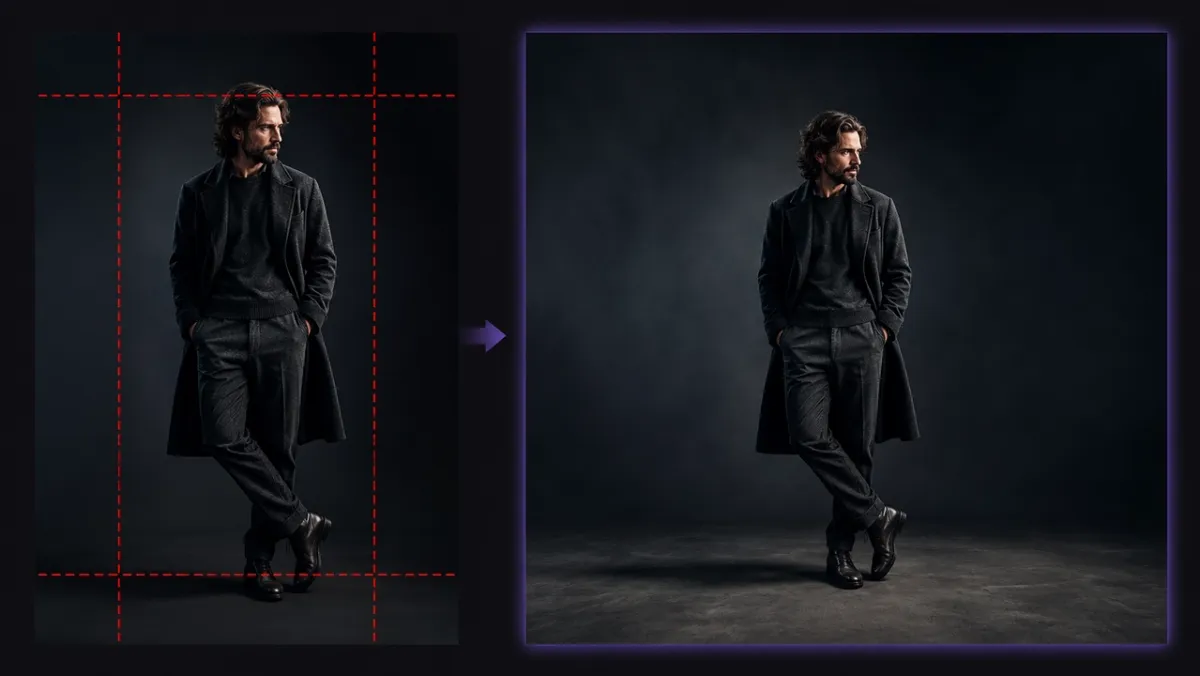
Canvas expansion — sometimes called AI outpainting or image extending — takes a different approach entirely. Rather than trimming your photo to fit a target shape, the model studies the edges of your existing image and generates new, matching content beyond them, growing the canvas until it reaches the ratio you need.
The original photo is never touched. Every pixel your subject occupies stays exactly where it was; the AI only builds outward from there.
Three things make this approach work well in practice:
- The original stays untouched. New content is added around your photo, never layered on top of it.
- The fill matches the source. Lighting direction, color grading, and perspective in the generated area line up with the original shot.
- No manual masking is required. You choose a target ratio, and the model figures out how much space to add and where.
If your goal is actually to change something inside the frame — swap a background element, remove an object — that calls for inpainting rather than outpainting, since inpainting edits inside the existing borders instead of extending them.
Matching Ratios to Platforms
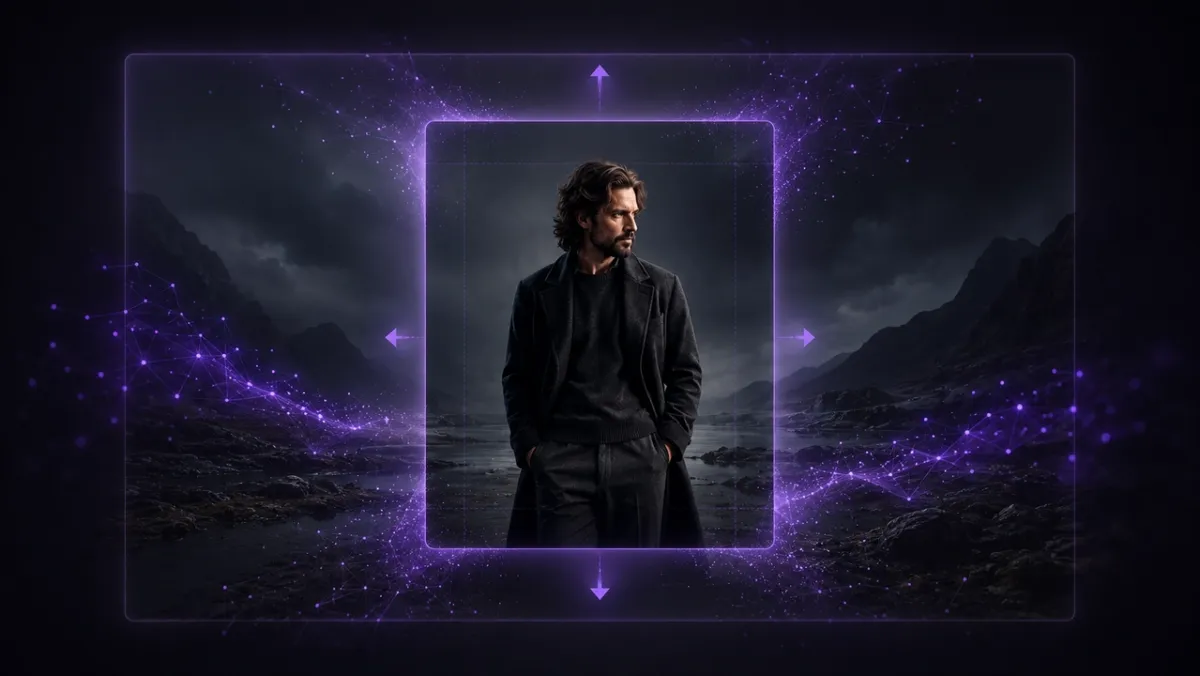
One source photo can realistically supply every placement you need if you expand it toward the right target each time.
| Ratio | Where it’s used |
|---|---|
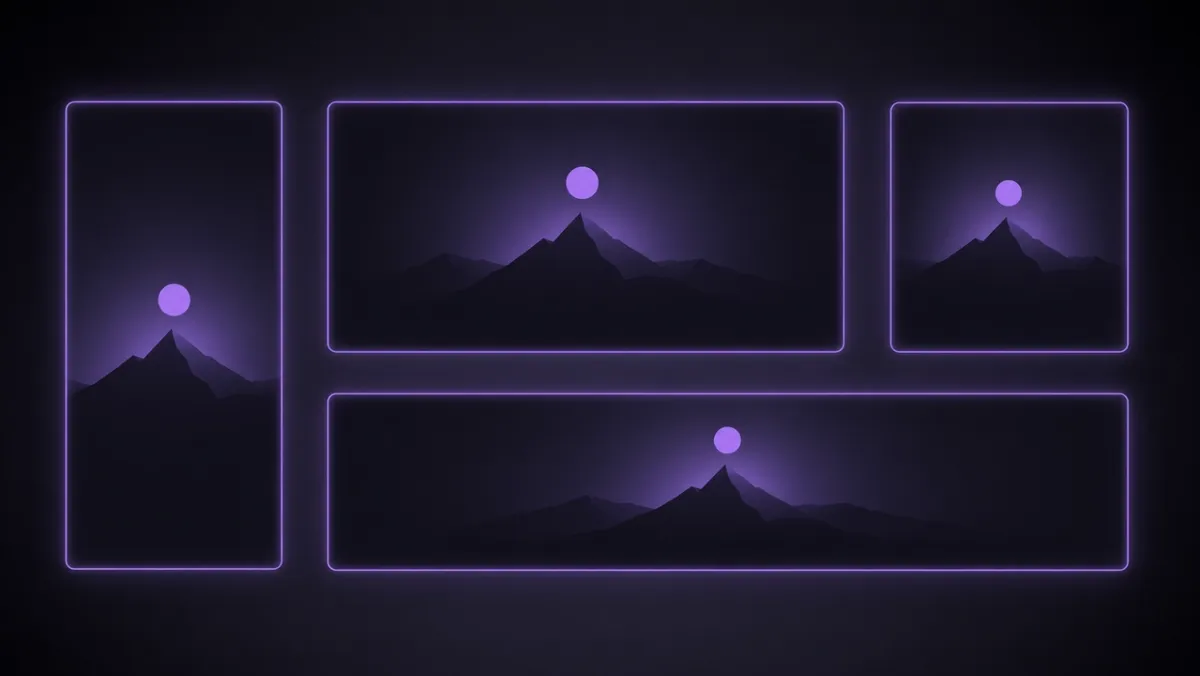
| 9:16 | TikTok, Instagram Reels, YouTube Shorts |
| 16:9 | YouTube uploads, website headers, presentations |
| 1:1 / 4:5 | Instagram feed grid |
| 21:9 / 2.35:1 | Cinematic banners, hero images, video cover art |
Vertical (9:16): Expand a landscape or square photo both up and down. Because the growth happens on two opposite sides, your subject naturally lands centered in the new tall frame.
Widescreen (16:9): Take a phone photo shot in portrait and add generated background to the left and right. This is the fastest way to turn a vertical snapshot into a usable YouTube thumbnail.
Square and near-square (1:1, 4:5): Feed-native formats reward centered subjects. Expanding toward square keeps a product or face fully visible instead of shaving the sides off a wider photo.
Ultrawide (21:9): For cinematic banners and dramatic cover art, PixVerse also supports film ratios that many simpler tools skip entirely, useful when a shot needs to feel bigger than the frame it was captured in.
Resizing a Photo in PixVerse Without Cropping
PixVerse’s Magic Extend tool runs this whole process in three steps.
- Upload the source photo. Open Magic Extend and add a JPG, PNG, or WEBP file, up to 20MB.
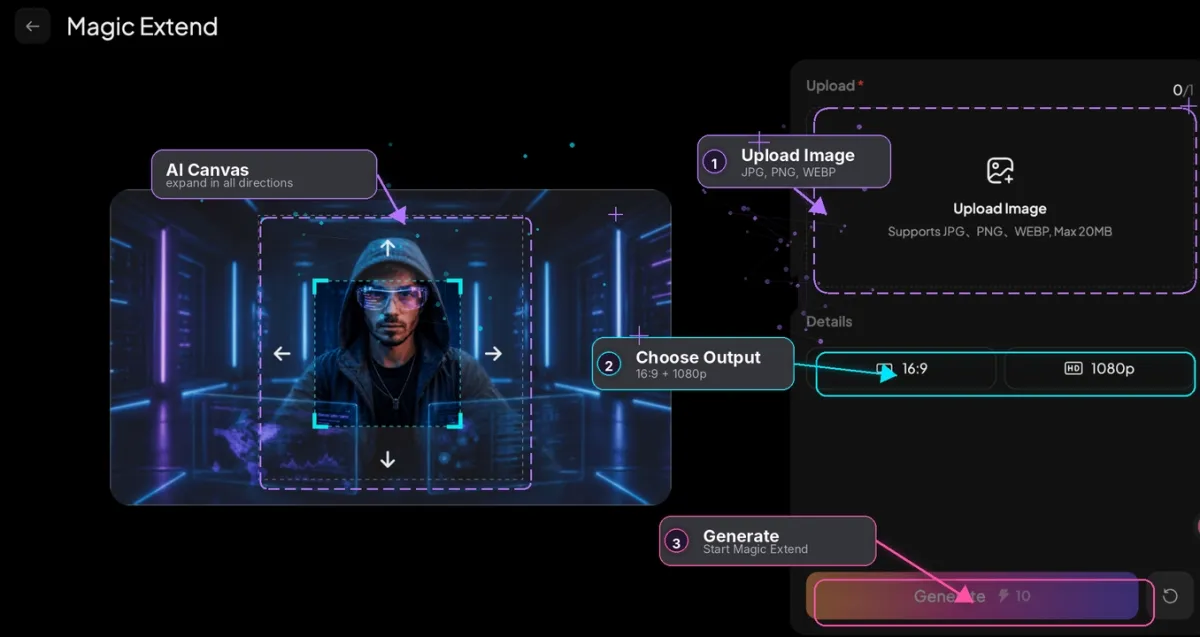
- Choose your target ratio and resolution. Pick a preset ratio or set a custom canvas, select 720p or 1080p output, and optionally add a short prompt describing what should fill the new space.
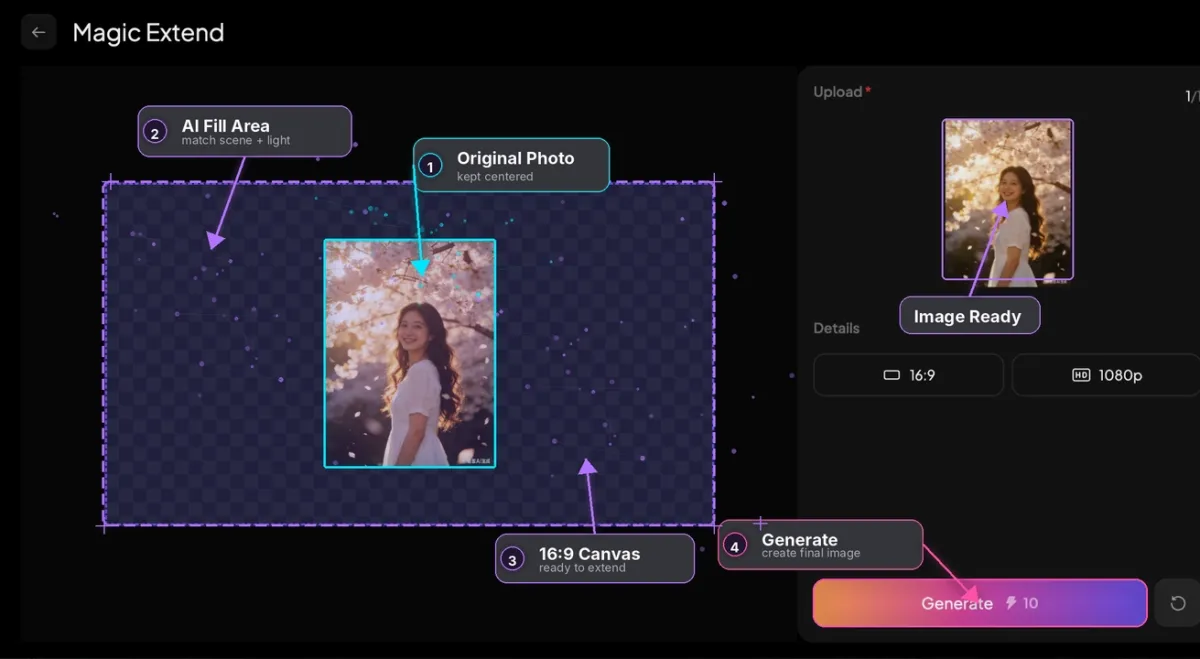
- Generate the result. The model fills in the new canvas area, matching the tone and detail of your original photo while leaving the subject untouched.
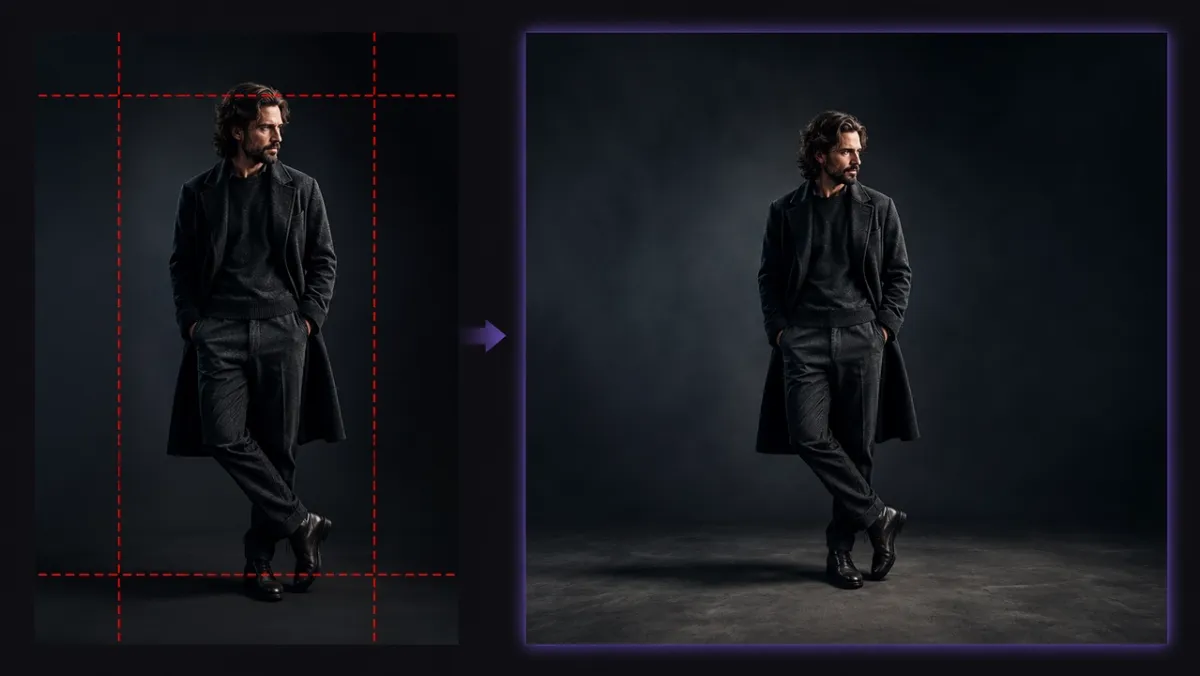
From Resized Photo to Finished Video
Resizing is frequently just the setup step. Because Magic Extend lives inside the same PixVerse workspace as image-to-video generation, you can take a freshly expanded image straight into motion without exporting to another app. Expand a product shot to 9:16, then turn it into a short animated clip in the same session — useful when you need both a still and a video version of the same asset for a single campaign.
Getting Cleaner Results From Canvas Expansion
A handful of habits make the output noticeably more reliable:
- Expand in smaller steps. Going from a tight portrait straight to an ultrawide banner asks more of the model than a moderate stretch does.
- Describe the new area. A short prompt like “extend the studio backdrop” or “continue the sky” gives the fill direction to work with.
- Watch busy backgrounds. Plain backdrops extend cleanly. Crowds, signage, and repeating patterns sometimes need a second pass.
- Anchor the subject. Keep the subject centered or clearly positioned so the added space wraps around it naturally.
- Regenerate rather than settle. If one edge looks slightly off, running it again is usually faster than manual retouching.
Wrapping Up
Fitting one photo to TikTok, YouTube, and Instagram doesn’t have to mean cropping something important out of it. Canvas expansion flips the usual workflow: instead of cutting the image down, you grow it out, and the AI handles matching the new area to the original.
Try it with your own photo in PixVerse Magic Extend — upload an image, pick a target ratio, and generate a platform-ready version in seconds.
FAQ
How is this different from just resizing an image in an editor?
Standard resizing scales or stretches the pixels you already have, which distorts faces and objects at extreme ratios. Canvas expansion generates new pixels around the original instead, so nothing gets stretched or cut.
Can I turn a vertical photo into a landscape one?
Yes. Expanding the left and right edges of a vertical photo brings it to 16:9 or similar landscape ratios, with the AI generating background that matches the original scene.
What file types does Magic Extend accept?
JPG, PNG, and WEBP files up to 20MB, with output available at 720p or 1080p.
Will the expanded area look obviously different from the original photo?
Not when the source has a fairly consistent background. The model matches lighting, color, and perspective from the original, and a short guiding prompt improves the blend further on busier scenes.