Merge Someone Into a Photo With AI: A Practical Workflow
Some photos are missing someone. Maybe a sibling couldn’t fly in for the family portrait, a remote teammate wasn’t in the room for the launch photo, or you simply want to test how a model would look standing next to a product shot before booking a real shoot. AI compositing tools now make it realistic to drop a person into an existing photo without touching a manual masking tool for an hour.
This guide walks through a repeatable process for merging a person into a photo: picking the right software, preparing your two source images, running the actual blend, and fixing the small details that give away an edit. Along the way we’ll look at where PixVerse fits — not just as an image editor, but as a platform that can carry your composite straight into a video.
Picking a Tool That Can Actually Blend a Person Into a Scene
Not every photo editor treats compositing the same way. A tool built for quick cutouts might strip a background cleanly but leave you with no way to match lighting or scale, so the result reads as “pasted” rather than “photographed.”
| Tool | Strength | Best fit |
|---|---|---|
| PixVerse | AI image editing plus native video generation from the same asset | Creators who want the composite to become a video clip |
| PhotoRoom | Fast, guided cutout templates | Quick social edits, e-commerce product shots |
| Remini | Upscaling and detail restoration | Cleaning up low-resolution source photos before compositing |
The Three Capabilities That Matter Most
Whichever app you choose, check for these three things before you commit to a workflow:
- Automatic subject cutout. A model that reads edges around hair, glasses, and loose clothing will save you the most manual cleanup time.
- Automated color and tone matching. The tool should be able to shift skin tone, white balance, and exposure on the added subject to match the base photo’s lighting.
- Layered, non-destructive editing. Keeping the background, the subject, and any adjustment layers separate means you can nudge position or scale without starting over.
Why PixVerse Is Worth Testing for This
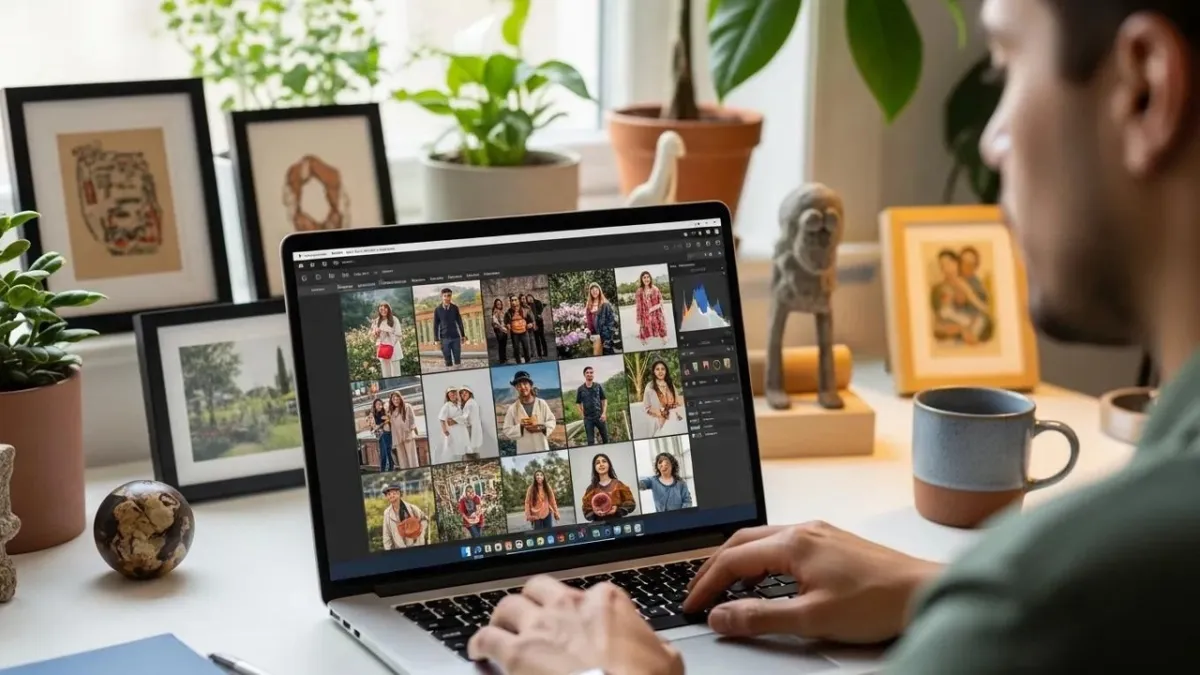
PixVerse’s edge case for photo compositing is what happens after the merge. Because the platform combines image tools with its own video models, a composite you build for a still photo doesn’t have to stay a still photo — you can carry the same merged scene into a short clip without exporting to a separate app.
On the image side, PixVerse supports the merge process with:
- Scene-aware placement guidance, reading depth and lighting cues in the base photo so the added subject lands at a believable scale and position.
- Frequent model updates, which keep cutout precision and blending quality improving release over release.
- A direct path to video, so a finished composite can become the first frame of an animated clip instead of a dead end.
If your plan is “merge this photo, then animate it for a reel,” doing both steps on one platform removes a real amount of file-shuffling.
A Step-by-Step Workflow for Merging a Person Into a Photo
Good compositing is mostly decided before you open the editor. Here’s the order that produces the fewest surprises.
- Start with a sharp, well-composed background photo. Give yourself resolution to spare — you’ll likely crop or reposition later.
- Pick a subject photo shot in similar light. Matching the direction and warmth of the light source up front saves a lot of color-correction later.
- Cut out the subject and place them on the background layer.
- Scale and position the subject, then check the horizon line and any nearby people for a size reference.
- Add or soften shadows so the subject casts light the same way everything else in the frame does.
- Zoom to 100% and check edges — hair strands, fingers, and fabric edges are where most bad composites reveal themselves.
You can follow this same sequence inside the PixVerse app or any editor with cutout and layer support — only the button names change.
Getting Your Two Source Photos Ready
A few minutes of prep here prevents most of the rework later:
- Match the light source. A subject lit by cool overcast daylight will look wrong dropped into a background shot at golden hour, no matter how good the cutout is.
- Match the camera angle. A subject photographed straight-on rarely sits naturally in a background shot from a low or tilted angle — look for images shot at a similar height and tilt.
- Confirm both images are high resolution. You’re going to scale and crop; starting soft only gets softer.
What’s Actually Happening Behind the Scenes

Modern compositing tools aren’t just cutting along a color boundary. A few things happen under the hood that are worth understanding, since they explain why some images blend easily and others fight you:
- Scene understanding models estimate the structure of the photo so the software knows roughly where surfaces and objects sit relative to each other.
- Depth estimation lets the tool figure out whether your added subject should appear in front of or behind existing elements in the frame.
- Edge refinement handles the hard cases — flyaway hair, transparent fabric, fingers overlapping a railing — that a simple cutout tends to butcher.
Backgrounds with a lot going on — crowds, foliage, cluttered interiors — put more strain on all three of these systems, which is why they’re the cases most likely to need manual touch-up.
Getting a Result That Doesn’t Look Edited
The gap between an obvious composite and one nobody questions usually comes down to three habits.
- Shadows first. Add a soft shadow under the feet and a subtle contact shadow wherever the subject touches another surface. Missing shadows are the single fastest way to spot a fake.
- Don’t skip the zoom-in pass. Check edges, skin tone continuity, and proportions at full resolution before you export — problems that are invisible at thumbnail size are obvious in a final print or full-screen view.
- Use the strongest tool available for the job, and don’t be afraid to run a second pass in a different app if the first result is close but not quite right.
Where Composites Usually Go Wrong
Even solid tools have predictable failure points. Knowing them in advance means you can plan around them instead of troubleshooting blind:
- Scale mismatches. A head or shoulder width that’s slightly too large or small relative to other people in frame breaks the illusion immediately — compare against a known reference point in the scene.
- Different tools handle hair and fine detail differently. If your first result botches flyaway hair or glasses reflections, try a second app rather than fighting the same model repeatedly.
- Busy backgrounds confuse automatic cutouts. Overlapping objects, patterned clothing near the subject, and cluttered scenes are where you’ll most often need manual edge cleanup.
Plan for one or two rounds of adjustment on a tricky merge — that’s normal, not a failure of the tool.
Habits That Improve Results Over Time
A handful of practices compound the more you composite photos. Platform-specific tips live in the PixVerse documentation, but these apply broadly:
- Stick with one tool long enough to learn its quirks. Knowing exactly how one app’s feather slider or shadow brush behaves is faster than relearning a new interface every time.
- Deliberately test mismatched image pairs. Understanding which lighting and angle combinations blend easily builds intuition you can’t get from reading alone.
- Watch short tutorials for the specific app you’re using. Features like local color match or edge feathering are often buried in menus and easy to miss without a walkthrough.
Related Resources
- How PixVerse Turns Product Photos Into Video Ads
- How to Create Consistent Characters With AI: PixVerse V6 Guide
- The Best Image-to-Video AI Tool
- PixVerse AI Platform Guide
- PixVerse Prompt Tips: Basic Edition
FAQ
Can AI realistically add a person to a photo?
Yes. Modern compositing tools handle background removal, color and lighting matching, and layered positioning well enough that a careful edit holds up to normal viewing. The result still depends on how well your source images match in light and angle, and how much manual polish you put in at the end.
What’s the simplest way to merge two photos with a person in them?
Upload your background and subject photos to a tool with automatic cutout, drop the subject onto the background layer, then adjust scale, position, and shadows. PixVerse and PhotoRoom both streamline this into a guided flow.
Which app should I use for a group photo composite?
PixVerse, PhotoRoom, and Remini each solve a different part of the problem — PixVerse if you also want to turn the result into video, PhotoRoom for the fastest cutout, and Remini when your source photos need upscaling before you even start compositing.
Do I need Photoshop-level skills to do this well?
No. AI-driven web and mobile editors now handle cutout, layering, and basic color matching without manual masking. Photoshop still wins on maximum control for commercial-grade work, but most personal and social composites don’t need it.
How do I stop a composite from looking obviously edited?
Match lighting direction and camera angle between your two source photos, scale the subject against a real reference point in the scene, add consistent shadows, and always review edges at full zoom before exporting.