PixVerse और GPT-6 Astra के साथ सिनेमैटिक वीडियो बनाएँ: क्रिएटर गाइड और उपयोग
GPT-6 Astra और PixVerse योजना, स्थानीय रचनात्मक उपकरण और AI वीडियो जनरेशन को एक व्यावहारिक प्रोडक्शन पथ में लाते हैं। PixVerse with GPT-6 Astra के माध्यम से क्रिएटर ChatGPT में संरचित ब्रीफ़ से शुरू कर सकते हैं, 3D या एडिटिंग एसेट स्थानीय रूप से तैयार कर सकते हैं, और PixVerse प्लगइन से स्वीकृत संदर्भों को सिनेमैटिक वीडियो, मोशन ग्राफ़िक्स या इंटरैक्टिव रचनात्मक काम में बदल सकते हैं।
यह वर्कफ़्लो उन क्रिएटरों के लिए है जिन्हें केवल टेक्स्ट वीडियो प्रॉम्प्ट से अधिक नियंत्रण चाहिए: कैमरा मार्ग जाँचने वाले निर्देशक, संपादन योग्य previs बनाते 3D कलाकार, पात्र या उत्पाद लेआउट सुरक्षित रखने वाली टीमें, और फ़िनिशिंग पास तैयार करते एडिटर। Astra डेस्कटॉप वातावरण में रचनात्मक कार्य को व्यवस्थित और निष्पादित करने में मदद करता है; PixVerse वह जनरेशन चरण देता है जो जानबूझकर चुने संदर्भों को तैयार दृश्य परिणाम में बदलता है।
PixVerse के साथ GPT-6 Astra आज़माएँ
मुख्य बातें
- रचनात्मक ब्रीफ़ को संरचित प्रोडक्शन कार्य में बदलने के लिए Astra का उपयोग करें, फिर अंतिम AI वीडियो पास के लिए PixVerse का।
- पूर्वावलोकन वीडियो गति, कैमरा और लेआउट नियंत्रित करे; स्थिर छवि रूप, सामग्री और प्रकाश नियंत्रित करे।
- छोटे, समीक्षा योग्य शॉट से शुरू करें और संशोधन के लिए संपादन योग्य दृश्य, स्रोत संदर्भ और स्वीकृत आउटपुट सुरक्षित रखें।
PixVerse के साथ GPT-6 Astra क्या है?
PixVerse Astra पृष्ठ GPT-6 Astra को ChatGPT डेस्कटॉप ऐप के माध्यम से PixVerse के साथ बनाने का तरीका बताता है। मूल विचार सरल है: दृश्य परिभाषित करने के लिए विस्तृत प्रोडक्शन ब्रीफ़ का उपयोग करें, दृश्य संदर्भ बनाएँ या तैयार करें, फिर स्थापित प्लगइन के माध्यम से प्रासंगिक इनपुट PixVerse को भेजें।
वीडियो प्रोडक्शन के लिए यह ज़िम्मेदारी का उपयोगी विभाजन बनाता है। 3D पूर्वावलोकन या संदर्भ वीडियो स्थानिक लेआउट, क्रिया का समय, रचना और कैमरा गति तय कर सकता है। अलग रूप-संदर्श सामग्री, प्रकाश, वातावरण, रंग और विषय डिज़ाइन तय कर सकता है। PixVerse फिर इन जानबूझकर अलग रचनात्मक संकेतों का पालन करते हुए अंतिम वीडियो जनरेट कर सकता है।
यह तब विशेष रूप से मूल्यवान है जब परियोजना को अवधारणा, previs, जनरेशन और समीक्षा के बीच दोहराने योग्य हस्तांतरण चाहिए। यह वादा नहीं है कि हर जनरेटेड टेक अपने संदर्भ के समान होगा। टीमों को आउटपुट की समीक्षा करनी चाहिए, स्वीकृत संस्करण सुरक्षित रखने चाहिए, और केवल उन शॉट को फिर से जनरेट करना चाहिए जहाँ कोई विशिष्ट आवश्यकता स्पष्ट रूप से विफल हुई हो।
Astra वर्कफ़्लो में PixVerse क्यों?
PixVerse इस वर्कफ़्लो में AI वीडियो जनरेशन की परत है। जनरेशन को अलग अंतिम चरण मानने के बजाय, यह रचनात्मक प्रक्रिया द्वारा तैयार दृश्य सामग्री का उपयोग कर सकता है: गति के लिए ग्रे-मॉडल एनिमेशन और वांछित फ़िनिश के लिए संदर्भ छवि।
यह क्रिएटरों को जटिल दृश्यों के साथ अधिक जानबूझकर काम करने का तरीका देता है:
- अंतिम जनरेशन पास से पहले कैमरा गति और फ़्रेमिंग की योजना बनाएँ।
- बाद के संशोधन के लिए 3D दृश्य, एनिमेशन या एडिट प्रोजेक्ट उपलब्ध रखें।
- अलग संदर्भों को स्पष्ट भूमिका दें, एक प्रॉम्प्ट से लेआउट, समय, रूप और गति एक साथ हल कराने के बजाय।
- लंबे एडिट में जोड़ने से पहले हर शॉट की निरंतरता, शरीर रचना, occlusion, समय और दृश्य दोषों के लिए समीक्षा करें।
व्यापक निर्माण विकल्पों के लिए PixVerse AI वीडियो जनरेशन, टेक्स्ट-टू-वीडियो और इमेज-टू-वीडियो वर्कफ़्लो भी देता है। Astra एकीकरण तब सबसे उपयोगी है जब रचनात्मक काम को संरचित योजना और बाहरी प्रोडक्शन एसेट से लाभ हो।
GPT-6 Astra और PixVerse से कैसे शुरू करें
आधिकारिक PixVerse Astra पृष्ठ पर सेटअप के तीन चरण हैं:
- ChatGPT डेस्कटॉप ऐप डाउनलोड करें और साइन इन करें।
- ChatGPT के लिए PixVerse प्लगइन इंस्टॉल करें।
- किसी Astra उपयोग मामले से शुरू करें, प्रोडक्शन ब्रीफ़ को अपने दृश्य के अनुसार ढालें, और PixVerse के साथ बनाएँ।
जनरेट करने से पहले तय करें कि प्रत्येक एसेट क्या नियंत्रित करे। यह छोटा योजना चरण एक आम विफलता रोकता है: एक कम-विस्तार पूर्वावलोकन से अंतिम छवि की हर बात परिभाषित कराना।
| इनपुट | सबसे अच्छा नियंत्रण | इसे इस पर केंद्रित रखें |
|---|---|---|
| ग्रे-मॉडल या व्हाइट-मॉडल वीडियो | कैमरा पथ, समय, स्थानिक लेआउट, क्रिया, फ़्रेमिंग | ज्यामिति और गति, अंतिम सामग्री नहीं |
| स्थिर संदर्भ छवि | रूप, प्रकाश, बनावट, रंग पैलेट, विषय पहचान | अंतिम दृश्य दिशा |
| दृश्य फ़ाइल या एडिट प्रोजेक्ट | संशोधन, rigging, लेआउट परिवर्तन, हस्तांतरण | संपादन योग्य स्रोत कार्य |
| PixVerse जनरेशन ब्रीफ़ | क्या स्थिर रहना चाहिए और क्या बेहतर हो सकता है | स्पष्ट सीमाएँ और समीक्षा मानदंड |
भरोसेमंद प्रोडक्शन लूप
पूरी फ़िल्म के बजाय छोटी, जाँच योग्य अनुक्रम से शुरू करें। काम के अनुकूल उपकरण में ब्लॉकिंग, कैमरा गति या क्रिया बनाएँ। साफ़ पूर्वावलोकन निर्यात करें, रूप-संदर्श तैयार करें, और जब निरंतरता मायने रखे तो प्रति शॉट एक PixVerse कार्य बनाएँ।
फिर पूरे टेक को सामान्य प्लेबैक गति पर देखें। दृश्य के लिए सबसे महत्वपूर्ण आवश्यकताएँ जाँचें: कैमरा प्रवाह, वस्तु संख्या, विषय स्थिति, पढ़ने योग्य क्रिया, हाथ या पहिया संपर्क, ज़मीन संपर्क, और अनचाही कट या लेआउट परिवर्तन की अनुपस्थिति। यदि शॉट विफल हो, तो केवल प्रभावित भाग बदलने से पहले तय करें कि कारण पूर्वावलोकन है, रूप-संदर्श है, या जनरेशन दिशा है।
प्रोडक्शन श्रेणी के अनुसार चार Astra वर्कफ़्लो
ये चार उदाहरण चार अलग प्रोडक्शन ज़रूरतें कवर करते हैं। प्रत्येक वर्कफ़्लो सार्वजनिक लेख को परिणाम और दोहराने योग्य प्रोडक्शन पथ पर रखता है; यह अंतर्निहित संदर्भ एसेट नहीं दिखाता।
| श्रेणी | उदाहरण | सबसे अच्छा |
|---|---|---|
| फ़िल्म previs | 3D रेस कार क्रैश का सिमुलेशन | तेज़ वाहन क्रिया, कैमरा ट्रैकिंग और शॉट निरंतरता की योजना |
| 3D मॉडलिंग | पुलिस कार पीछा दृश्य | ग्रे-मॉडल स्टेजिंग को फ़ोटोरियलिस्टिक एक्शन अनुक्रम में बदलना |
| गेम विकास | 3D POV जादूगर का कार्यपीठ | नियंत्रित प्रथम-व्यक्ति इंटरैक्टिव दृश्य बनाना |
| इंटरनेट संस्कृति | लाइव कैट मीम स्टेज | सुसंगत पहचान के साथ पात्र-नेतृत्व वाला मीम प्रदर्शन |
फ़िल्म previs: 3D रेस कार क्रैश का सिमुलेशन
यह वर्कफ़्लो ऐसे शैलीबद्ध कार पीछा के लिए है जिसमें गति, वाहन क्रम और कैमरा दिशा अंतिम PixVerse पास से पहले पढ़ने योग्य रहें।
अंतिम वीडियो
पूरा वर्कफ़्लो प्रॉम्प्ट
Create an original GTA-inspired cartoon car chase using this workflow: Design: Define one main driver, one getaway car, one pursuing car, and one urban environment. Keep their designs consistent. Plan three 4-second shots: rear tracking pursuit, side tracking through a sharp turn, and a wide exit shot. Build in Blender: Create clean gray models and functional character and vehicle rigs. No textures or UV unwrapping are required. Animate and test: Animate the driver, steering, wheel rotation, vehicles, and cameras. Maintain coherent travel direction and vehicle order. Fix clipping, floating wheels, sliding tires, broken poses, and hands losing contact with the steering wheel. Render in Blender: Render frames 1–288 at 1280×720, 24 fps. Assemble actual Blender-rendered frames into a complete 12-second gray-model master. Export each shot separately and render matching gray stills as shape and composition references. Video prompt: Use Seedance 2.5 at 720p, processing each shot separately. Use the Blender clips as motion references and the gray stills as shape references. Define a consistent cartoon color palette. Preserve camera movement, action timing, character and vehicle designs, and vehicle count. Review and deliver: Inspect both complete videos for visual defects and continuity. Repair Blender issues and regenerate only failed Seedance shots, with at most two retries per shot. Deliver the editable .blend, the native 720p Blender gray-model video, the separately labeled 720p Seedance version, and a brief assessment of remaining limitations.
3D मॉडलिंग: पुलिस कार पीछा दृश्य
यह मामला तब उपयोगी है जब एक्शन दृश्य को यथार्थवादी दृश्य फ़िनिश चाहिए और रचना, वाहन प्रक्षेपवक्र तथा समय के लिए संपादन योग्य 3D योजना भी बनी रहे।
अंतिम वीडियो
पूरा वर्कफ़्लो प्रॉम्प्ट
Create an original GTA-inspired car chase with a photorealistic, live-action cinematic finish, using this workflow: Design: Define the driver, two cars, and urban environment. Plan three 4-second shots: rear tracking pursuit, side tracking through a sharp turn, and a wide exit shot. Keep identities and vehicle order consistent. Build in Blender: Create clean gray models and functional character and vehicle rigs. No textures or UV unwrapping are required. Animate and test: Animate the vehicles, wheel rotation, steering, driver, and cameras. Fix clipping, floating wheels, sliding tires, broken poses, and hands losing contact with the steering wheel. Render in Blender: Render the complete 12-second gray-model video at 1280×720, 24 fps, using actual Blender-rendered frames. Export each 4-second shot separately and extract its first frame. Image prompt: Transform each shot’s gray first frame into a photorealistic cinematic reference image in PixVerse. Preserve composition, perspective, subject positions, and vehicle count. Replace simplified gray geometry with realistic people, detailed cars, believable architecture, natural materials, and cinematic lighting. Keep the same driver, car designs, colors, and lighting across all three images. Avoid cartoon, toy-like, low-poly, or clay-render styling. Video prompt: Use Seedance 2.5 at 720p, supplying the cinematic reference image together with its corresponding gray-model video. The image defines appearance and realism; the video defines camera movement, spatial layout, vehicle trajectories, and action timing. Generate each shot separately. Review and deliver: Check realism, identity consistency, vehicle count, motion, and shot continuity. Repair faulty shots, with at most two retries per shot. Deliver the editable .blend, native 720p Blender gray-model video, cinematic reference images, separately labeled 12-second Seedance version, and a brief assessment of remaining limitations.
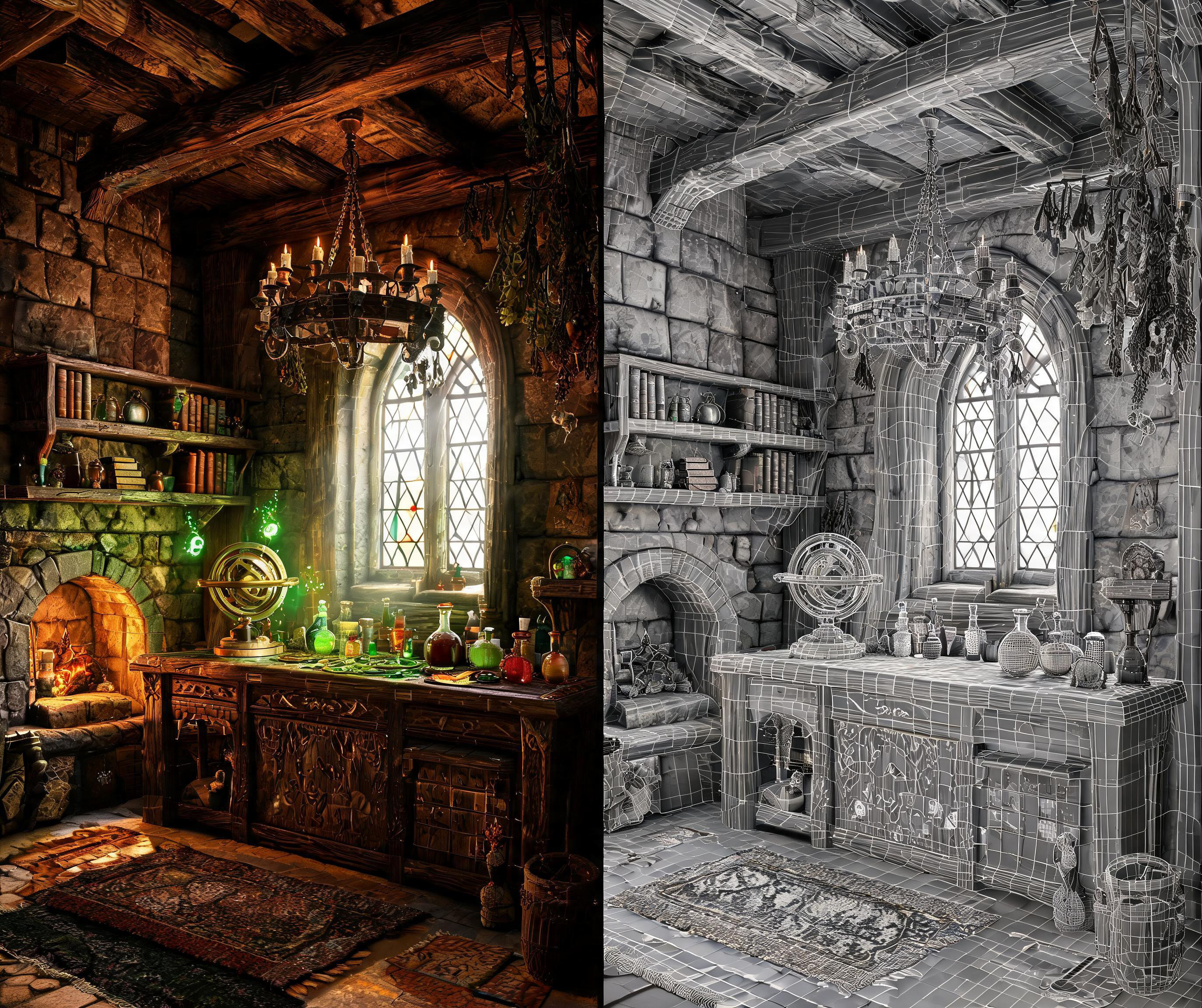
गेम विकास: 3D POV जादूगर का कार्यपीठ
यह प्रथम-व्यक्ति उदाहरण गेमप्ले की पठनीयता पर केंद्रित है: एक हाथ, एक प्रॉप, निरंतर कैमरा चाल, और स्थिर कमरे का लेआउट।
अंतिम वीडियो
पूरा वर्कफ़्लो प्रॉम्प्ट
Create a 12-second, single-take white-model animation in Blender based on the attached reference image https://media.pixverse.ai/asset/media/WizardRoom.jpg, then use PixVerse with Seedance 2.5 to transform the exported animation into a cinematic, Witcher-3-inspired wizard workshop sequence. In Blender, use the reference image to guide the room layout, architecture, furniture, and props. Build an editable low-poly scene with clean meshes and UVs, using simple white or light-gray materials. Include stone walls, wooden shelves, an arched window, a fireplace, books, an astronomical instrument, and an alchemy table filled with potion bottles. Keep the silhouettes readable and the room proportions believable. Animate a low first-person viewpoint with exactly one right hand holding one potion. Begin with the bottle resting near the lower-right edge while the character looks around the workshop and toward the window. Raise the potion naturally, pause to examine it, shift focus onto the bottle, then lower it while turning toward the fireplace and glowing reagents. Leave a small gap between the palm and bottle while maintaining believable fingertip contact. Use smooth changes in speed, gentle curved head movements, subtle breathing, and slight arm lag. Check the complete action at normal playback for clipping, awkward grip, abrupt turns, and excessive shaking. Keep the Blender fireplace simple: use logs, low embers, and flickering light. Avoid solid cones or flame-shaped meshes, which can be interpreted as glowing rocks. Prepare a separate fireplace detail from the reference image to guide the final appearance. Video prompt: Export the complete white-model MP4. Generate a 12-second video with PixVerse, using the Blender-exported white-model video as the camera, action, and spatial reference, the attached image as the scene appearance reference, and the fireplace detail as the fire reference. Preserve the continuous shot, low viewpoint, single-hand potion action, room layout, and timing. Enrich the scene with weathered stone, carved wood, worn leather, iron fittings, and realistic glass. Combine cool window light and drifting dust with warm fireplace illumination and softly glowing magical liquids. Create natural wood fire with thin, irregular flames curling between charred logs, glowing embers, occasional sparks, and subtle smoke. Keep the hand anatomy, bottle shape, fire movement, and focus transitions consistent throughout. Review the full generated video, especially the hand action and fireplace. Deliver the white-model MP4, the PixVerse-rendered MP4, and the editable Blender project.
इंटरनेट संस्कृति: लाइव कैट मीम स्टेज
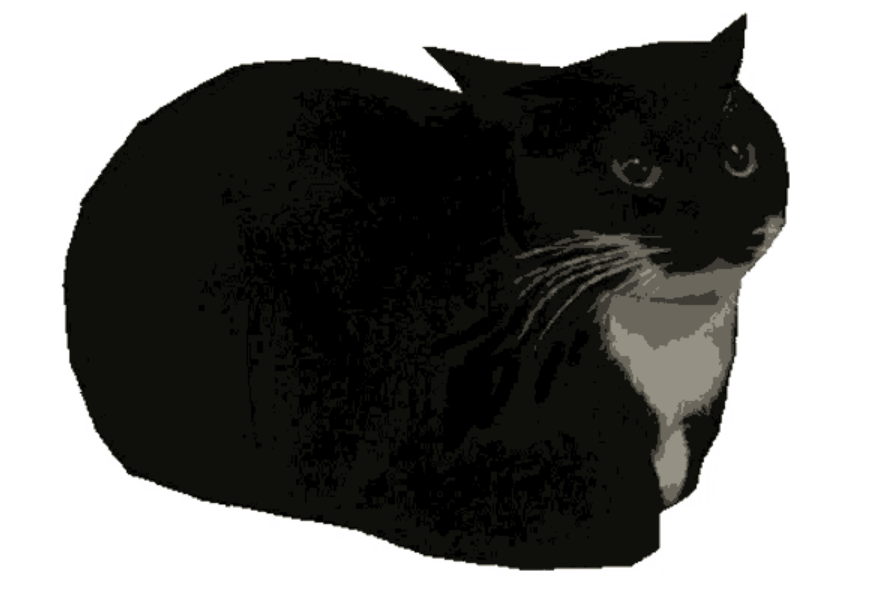
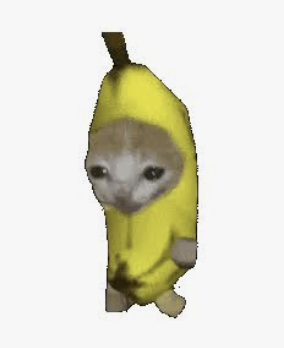
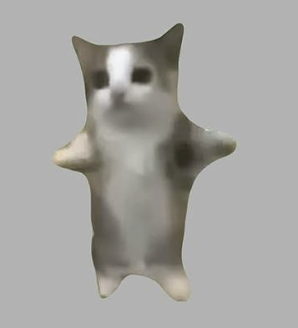
यह वर्कफ़्लो मंचित प्रदर्शन में पहचानने योग्य पाँच-पात्र मीम कास्ट का उपयोग करता है, इसलिए यह उन क्रिएटर-नेतृत्व वाले सामाजिक फ़ॉर्मैट के लिए उपयोगी टेम्पलेट है जिन्हें लंबी अनुक्रम में पहचान की निरंतरता चाहिए।
अंतिम वीडियो
पूरा वर्कफ़्लो प्रॉम्प्ट
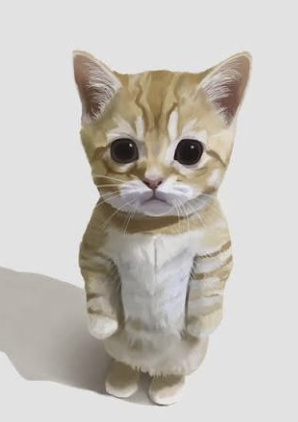
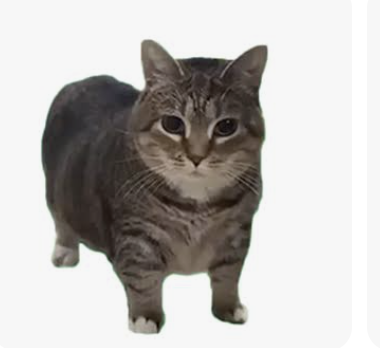
First download these five reference images: https://media.pixverse.ai/asset/media/CATMEME3.png, https://media.pixverse.ai/asset/media/CATMEME1.png, https://media.pixverse.ai/asset/media/CATMEME0.png, https://media.pixverse.ai/asset/media/CATMEME4.png, and https://media.pixverse.ai/asset/media/CATMEME2.png. Inspect their contents and arrange the characters from left to right as the banana-suit cat, black tuxedo loaf, brown tabby, gray-white happy cat, and orange kitten. Build an editable Blender neon concert stage with a glossy black floor, LED side walls, a raised center platform, and the exact backdrop text “MEME LIVE / PixVerse.” Preserve the reference appearances using shallow photo-textured models with the same character photograph visible on both front and back. Keep all five cats bouncing on separate fixed marks; only the black tuxedo loaf and brown tabby continuously spin. Create a 15-second, 24fps animation with flashing concert lights, a wide opening, individual cat close-ups, and a circling crane ending. Inspect and fix the scene, then export the editable project, a Cycles-rendered color video, a matching gray model video, and the exact color first frame. Image prompt: Use PixVerse to redraw that first frame with strong photographic realism, dramatic cyan–magenta lighting, and realistic stage materials while preserving the layout, characters, and text. Video prompt: Use Seedance 2.5 in PixVerse to generate the final video using the redrawn scene as the appearance reference, all five downloaded character images as identity references, and the gray video as the motion and camera reference. Validate upload requirements and proportionally resize reference copies when necessary. Inspect character consistency, spinning reverse textures, lighting, and camera cuts; deliver exactly 15 seconds at 1080p and 24fps without audio. Save and package all final assets and editable sources locally, move superseded versions to Trash after verification, and open the final Blender project in its animated camera view with playback running.
बेहतर Astra-से-PixVerse परिणामों के सुझाव
जटिल दृश्य जनरेशन पर भेजने से पहले ये दिशानिर्देश अपनाएँ:
- रचनात्मक अधिकार का नाम लें। बताएँ कि छवि रूप नियंत्रित करती है या पूर्वावलोकन गति और लेआउट नियंत्रित करता है।
- हर शॉट छोटा और उद्देश्यपूर्ण रखें। विशिष्ट कैमरा चाल की जाँच कई प्रतिस्पर्धी क्रियाओं वाली लंबी अनुक्रम से आसान है।
- अपरिवर्तनीय बातें लिखें। उस पात्र, वाहन, प्रॉप, वास्तुकला, वस्तु संख्या या कैमरा चाल का उल्लेख करें जो बदल नहीं सकती।
- विफलता के मामले बताएँ। जब शॉट के लिए मायने रखें तो अनचाही कट, झिलमिलाहट, अतिरिक्त विषय, occlusion, तैरना, लेआउट परिवर्तन या अस्थिर शरीर रचना बाहर रखें।
- सामान्य गति पर समीक्षा करें। तेज़ दृश्य स्थिर फ़्रेम में विश्वसनीय लग सकते हैं और गति में विफल हो सकते हैं।
- स्रोत एसेट रखें। तेज़ संशोधन चक्र के लिए संपादन योग्य दृश्य, संदर्भ छवि, पूर्वावलोकन, जनरेशन सेटिंग और स्वीकृत आउटपुट साथ रखें।
FAQ: GPT-6 Astra और PixVerse
क्या Astra और PixVerse के साथ बनाने के लिए 3D दृश्य ज़रूरी है?
नहीं। 3D दृश्य तब सबसे सहायक है जब आपको स्थान, कैमरा गति, समय या इंटरैक्शन पर जानबूझकर नियंत्रण चाहिए। आप संदर्भ छवि और संक्षिप्त रचनात्मक ब्रीफ़ से भी शुरू कर सकते हैं। जटिल क्रिया, वास्तुकला या बहु-शॉट कहानी के लिए संपादन योग्य पूर्वावलोकन जनरेशन प्रक्रिया को स्पष्ट गति और लेआउट संदर्भ देता है।
पूर्वावलोकन वीडियो और संदर्भ छवि दोनों क्यों?
वे अलग समस्याएँ हल करते हैं। पूर्वावलोकन वीडियो कैमरा गति, रचना, स्थानिक लेआउट और क्रिया का समय परिभाषित कर सकता है। संदर्भ छवि सामग्री, प्रकाश, रंग और विषय का रूप परिभाषित कर सकती है। इन भूमिकाओं को अलग रखने से यह बताना आसान होता है कि कौन से तत्व स्थिर रहें और PixVerse किन तत्वों को बेहतर बनाए।
PixVerse शॉट स्वीकृत करने से पहले क्या देखें?
केवल पहली फ़्रेम नहीं, पूरा शॉट देखें। कैमरा निरंतरता, फ़्रेमिंग, विषय पहचान, वस्तु संख्या, शरीर रचना या यांत्रिकी, ज़मीन संपर्क, occlusion, गति का समय, दृश्य दोष, और जहाँ प्रासंगिक हो ध्वनि जाँचें। स्वीकृत वीडियो और उसके स्रोत संदर्भ दोनों सहेजें ताकि बाद का सुधार स्पष्ट शुरुआती बिंदु से हो।
क्या यह वर्कफ़्लो पोस्ट-प्रोडक्शन का समर्थन करता है?
हाँ। पोस्ट-प्रोडक्शन को फ़िनिशिंग और गुणवत्ता-नियंत्रण चरण मानें: स्रोत प्रोजेक्ट और डिलीवरी विनिर्देश सुरक्षित रखें, उचित स्कोप और दृश्य समीक्षा से हर शॉट का आकलन करें, और सुधार योग्य ग्रेड समस्याओं को उन जनरेशन समस्याओं से अलग करें जिन्हें नए स्रोत या टेक की ज़रूरत है।
अपना अगला नियंत्रित AI वीडियो वर्कफ़्लो बनाएँ
GPT-6 Astra x PixVerse तब सबसे उपयोगी है जब विचार को एक टेक्स्ट प्रॉम्प्ट से अधिक चाहिए। प्रोडक्शन कार्य को आकार देने के लिए Astra का उपयोग करें, मायने रखने वाले संदर्भ बनाएँ या व्यवस्थित करें, और तैयार दृश्य परिणाम जनरेट करने के लिए PixVerse का उपयोग करें। एक छोटे दृश्य से शुरू करें, हर संदर्भ को स्पष्ट काम दें, और उन तत्वों के चारों ओर समीक्षा लूप बनाएँ जिन्हें परियोजना खो नहीं सकती।
प्रयोग के लिए तैयार हैं? PixVerse GPT-6 Astra पृष्ठ खोलें, ChatGPT में PixVerse प्लगइन इंस्टॉल करें, और अगले प्रोजेक्ट के लिए किसी उपयोग मामले को फिर से बनाने या ढालने के लिए चुनें।
संबंधित संसाधन
- PixVerse CLI: टर्मिनल से AI वीडियो, इमेज, आवाज़ और संगीत जनरेट करें
- PixVerse AI प्लेटफ़ॉर्म गाइड: वीडियो कंटेंट कैसे बनाएँ और स्वचालित करें
- 2026 में प्रोमो वीडियो कैसे बनाएँ: AI जनरेटर का अल्टीमेट गाइड
आधिकारिक स्रोत: PixVerse.