After the Fall: Turn Any Photo into an Epic Colosseum Scene
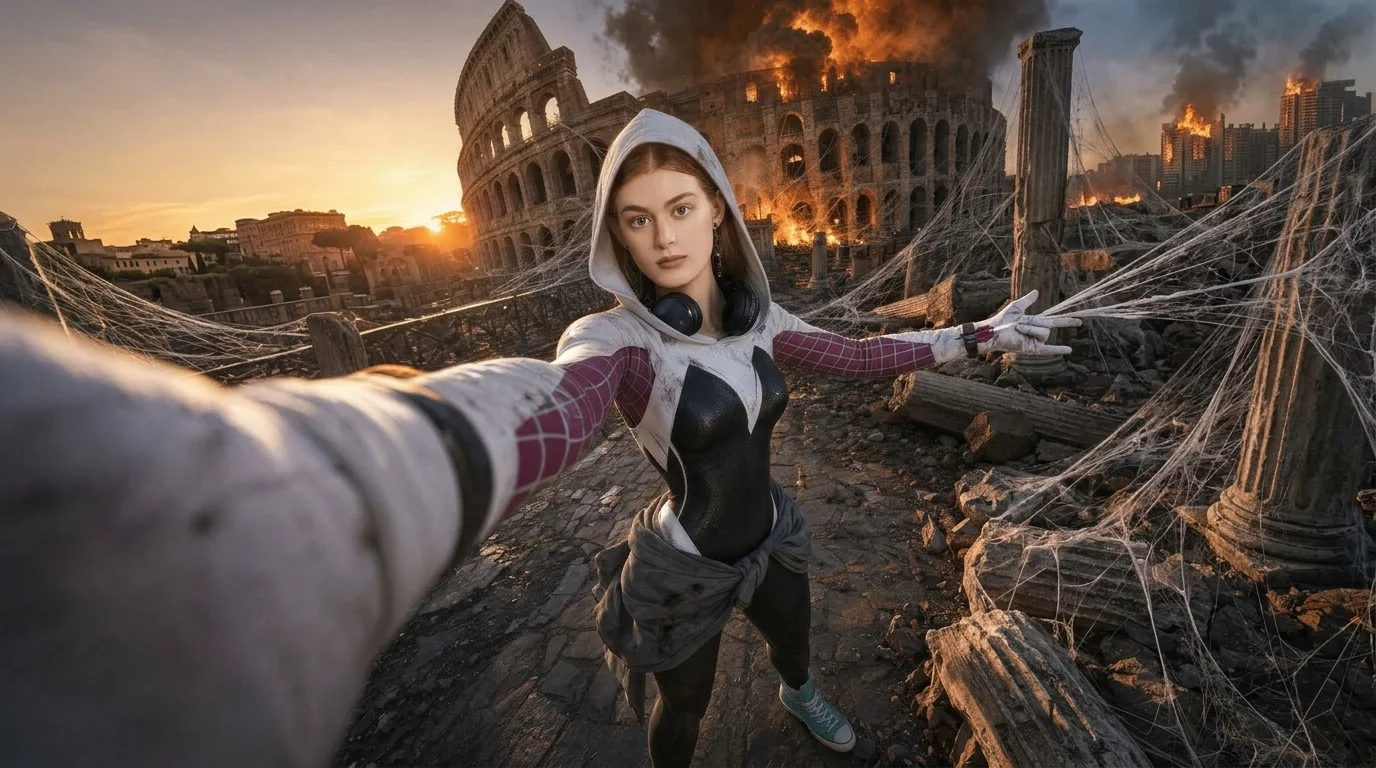
Take a selfie amid burning ruins of the Colosseum. That is the official prompt for PixVerse’s After the Fall template — a dramatic 8-second V6 effect that drops your subject into an epic apocalyptic disaster scene.
The official preview shows a cinematic moment in front of the blazing ruins of Rome’s Colosseum, surrounded by rising smoke, glowing floating embers, and a fiery sunset sky.
See It In Action
What Is the After the Fall Template?
After the Fall is a cinematic PixVerse image-to-video template powered by PixVerse V6. You upload one photo; PixVerse V6 generates an 8-second vertical video. Custom prompts are locked so the dramatic lighting and atmospheric effects stay consistent.
Template details
| Field | Value |
|---|---|
| Template name | After the Fall |
| Template ID | 415087977937920 |
| Output | Video |
| Model | PixVerse V6 |
| Input | 1 photo |
| Duration | 8 seconds |
| Quality | 360p / 540p / 720p / 1080p |
| Audio | Included |
| Custom prompt | Off |
| Launched | Jul 23 2026 |
How it works
- Upload one photo — a clear portrait or well-lit shot works best
- Select After the Fall — search the name in PixVerse templates, or use Template ID
415087977937920 - Generate — PixVerse V6 applies the effect automatically
- Download and share — export the clip for TikTok, Reels, or Shorts
What’s in the Official Preview
- A dramatic selfie angle framed directly against the blazing Colosseum ruins
- Atmospheric smoke plumes and glowing orange embers drifting through the air
- Fiery apocalyptic dusk lighting with rich contrast and realistic depth
- Cinematic camera drift that adds blockbuster weight to your portrait
How to Create Your After the Fall Video
Step 1: Choose a photo
Use a clear, well-lit portrait. Front-facing or three-quarter angles give the most natural selfie perspective.
Step 2: Open PixVerse
Visit PixVerse on web or in the app, then open the template library.
Step 3: Find After the Fall
Search After the Fall or look under newly launched templates. Confirm Template ID 415087977937920.
Step 4: Generate
Upload your photo and generate. The template does not require extra prompt writing.
Tips
- High-resolution portraits keep facial features sharp amid the fire and smoke
- Works great for action avatars, dramatic reels, and cinematic storytelling
- No need to adjust lighting — PixVerse V6 casts realistic fire highlights automatically
- Download in 1080p for crisp particle effects and ember details
Frequently Asked Questions (FAQ)
Q: Do I need to write a prompt? A: No. After the Fall has custom prompts turned off. Upload one photo and generate.
Q: How long is the video? A: 8 seconds, generated with PixVerse V6.
Q: What quality is available? A: 360p, 540p, 720p, and 1080p.
Q: How many photos do I upload? A: One photo. This is a single-image template.
Q: Can I use this for cosplay or gaming characters? A: Yes. Stylized character art and real human portraits both render convincingly.
Ready to step into the ruins? Open PixVerse, search After the Fall, and generate from one photo.
Related templates:
- Blocky Mini-Me — collectible block-twin miniature figurine
- Mini Me Unboxed — collectible 3D surprise figure unboxing
- The Infinite Trampoline — surreal plunge into an endless coral reef
- Little Gymnast — tiny gymnast on the rings