PixVerse Music Video: One-click MV, Pro DP and Visual Riff
Source-based overview; facts checked Oct 19, 2026. Speed, quality and benchmark claims are vendor-reported unless stated otherwise. Prices and early-access terms change; check provider pages before budgeting.
Last updated: Oct 19, 2026
PixVerse Music Video gives musicians, small labels and social creators three starting points: a finished song, an agent brief, or a photo. PixVerse announced One-click MV on Oct 13, 2026 (UTC), Pro DP on Oct 15, 2026 (UTC), and Visual Riff on Oct 16, 2026 (UTC).
Choose by the job you need done. Start with One-click MV when the track is ready and you want a guided route to a full-song MV. Consider Pro DP when shaping shots matters more than handing off the creative direction. Use Visual Riff when a portrait and a short musical moment are enough. This guide combines official descriptions with setup screens checked on Oct 19, 2026; it does not assess generated-video quality.
PixVerse Music Video at a Glance
PixVerse says the modes cover song-led generation, agent-directed production and photo animation. The comparison below uses its launch posts linked above and the PixVerse app setup screens checked on Oct 19, 2026. Unknown output settings remain marked for checking.
| Mode | Input | Control level | Output duration, separate from audio input cap | Best for |
|---|---|---|---|---|
| One-click MV | Song; optional character photo | Style and character setup | Check in app | Full-song MV or lyric-led video |
| Pro DP | Agent brief; other inputs: check in app | Shape shots, per PixVerse | Check in app | Creators seeking production direction |
| Visual Riff | Photo(s); own or AI-generated music | Music, style and duration | 8–15 seconds, per PixVerse app | Portrait teaser or short social clip |
One-click MV’s audio input limit is not a verified output-duration guarantee. “Best for” is our workflow recommendation, not a measured performance ranking.
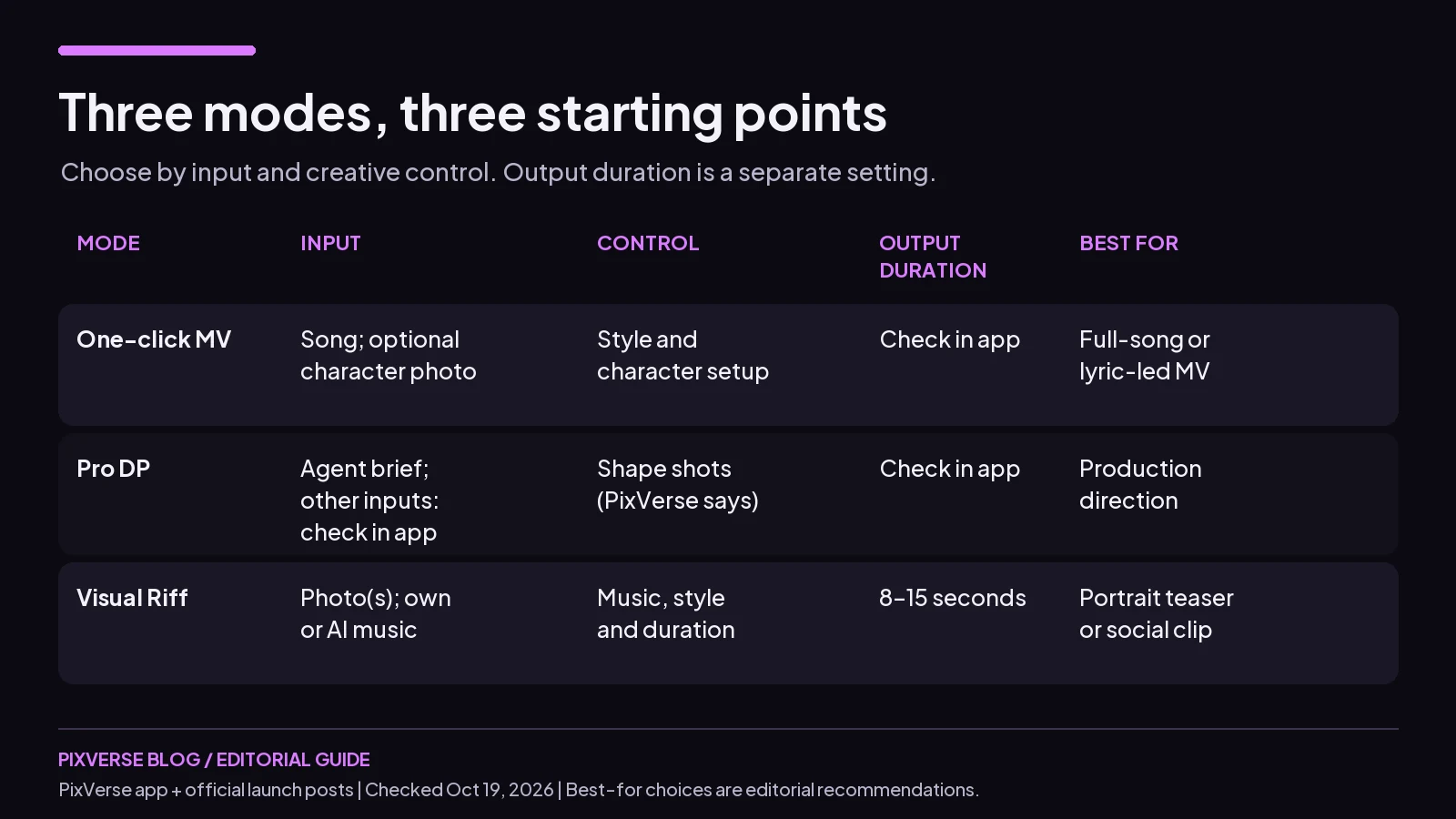 Editorial comparison based on PixVerse sources and setup screens checked Oct 19, 2026; unknown durations require an in-app check.
One-click MV: From Song to Finished MV
Prepare Your Audio
One-click MV accepts a song or audio extracted from a video and supports up to six minutes of audio, according to PixVerse’s entertainment page (checked Oct 19, 2026). In the app, navigate to Music Video > One-click MV. The upload control lists MP3, WAV and M4A (PixVerse app, checked Oct 19, 2026).
Use audio you have the rights to. Keep a copy of the final lyrics beside the track so you can review names, repeated lines and unfamiliar words later. For a first experiment, choose a song whose mood you can describe clearly.
Pick Expressive, Performance or Storytelling
The PixVerse app says Expressive MV is designed for emotional expression and atmospheric shots. Performance MV enables lip sync and targets singer or model performance videos. Storytelling MV uses prompts to shape the storyline and creative direction; that option displays “Powered by Freebeat.” These descriptions were visible on Oct 19, 2026.
Pick Expressive for mood-led imagery, Performance when the performer is central, or Storytelling when you have a narrative idea. For example, a Storytelling brief might describe a musician leaving an empty venue at dawn. This is a suggested creative direction, not a promise of a particular shot sequence.
Add a Character Photo
The PixVerse app asks for a clear front photo of the character. Add one if a recognizable performer belongs in your concept; the character image is optional. Choose a sharp portrait with an unobstructed face and even lighting. Avoid making the first attempt depend on a face hidden behind sunglasses, hair or a microphone.
Review Lyrics, Lip Sync and Beat Cuts
One-click MV supports lyric timestamp matching, subtitles, lyric lip sync, automatic beat-based editing and multilingual lyric subtitles, according to PixVerse’s entertainment page (checked Oct 19, 2026). The app explicitly says lip sync and subtitles are unavailable for instrumental audio. Treat those as conditional features when deciding what the finished video needs to communicate.
Before generating, review the audio, style and character selections. The setup screen showed 16:9 / 720p on Oct 19, 2026; check in app for other options. After generation, watch the opening, chorus transitions and ending, and inspect any lyrics and mouth movement before sharing.
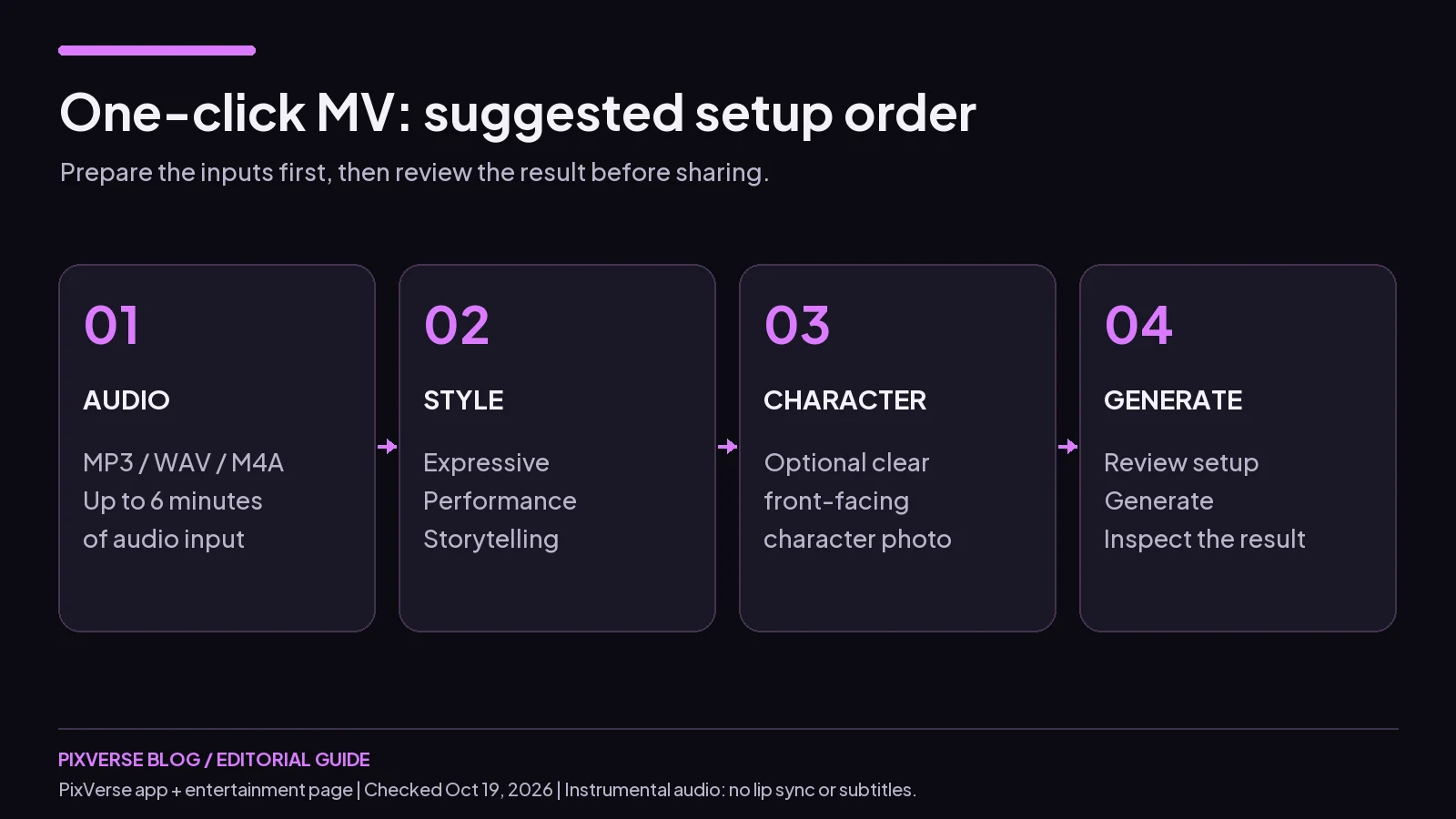 Suggested setup order: prepare audio, choose a style, optionally add a character, then review and generate.
Pro DP: Direct the Agent Shot by Shot
In its Oct 15, 2026 (UTC) Pro DP announcement, PixVerse says creators can brief an agent, shape shots and control the production. That supports considering Pro DP when you want to direct the work rather than make only an initial style choice.
On Oct 19, 2026, Music Video > Pro DP redirected our browser to login, so its production steps and output settings remain unverified. Prepare a creative brief covering the song’s mood, performer and intended visual arc, then inspect the controls after signing in. This is preparation advice, not a confirmed list of Pro DP input fields.
Visual Riff: One Photo, 8–15 Seconds
In its Oct 16, 2026 (UTC) Visual Riff announcement, PixVerse says it turns a still photo into an 8–15 second video with dynamic camera moves. It says you can choose music or generate it with AI, then select a style or describe your own.
In Music Video > Visual Riff, the PixVerse app checked on Oct 19, 2026 asks for 1–6 clear photos of the same person, with the face visible. One portrait is a starting point; the current setup also allows multiple references. Choose photos with a consistent appearance and enough clarity to see the face.
The screen offers Choose your music and AI Generate, a duration control between eight and fifteen seconds, and Urban, Chic and Custom video styles. Selecting Custom reveals a visual-style description field. A useful starting prompt is “cool blue stage lighting, restrained movement, intimate late-night mood.” Keep the request focused so you can judge whether the result fits the song.
Which Mode Should You Use?
Based on PixVerse’s descriptions and the setup screens checked Oct 19, 2026, choose by scope:
- Full lyric video: start with One-click MV and a vocal track; plan a lyric review before publishing.
- Singer-focused performance: try One-click MV’s Performance option when the character and lip sync matter to the concept.
- More production direction: investigate Pro DP when you want to brief an agent and shape shots; confirm its current controls after login.
- Teaser for socials: choose Visual Riff for a portrait-led musical moment, then check framing against the destination platform.
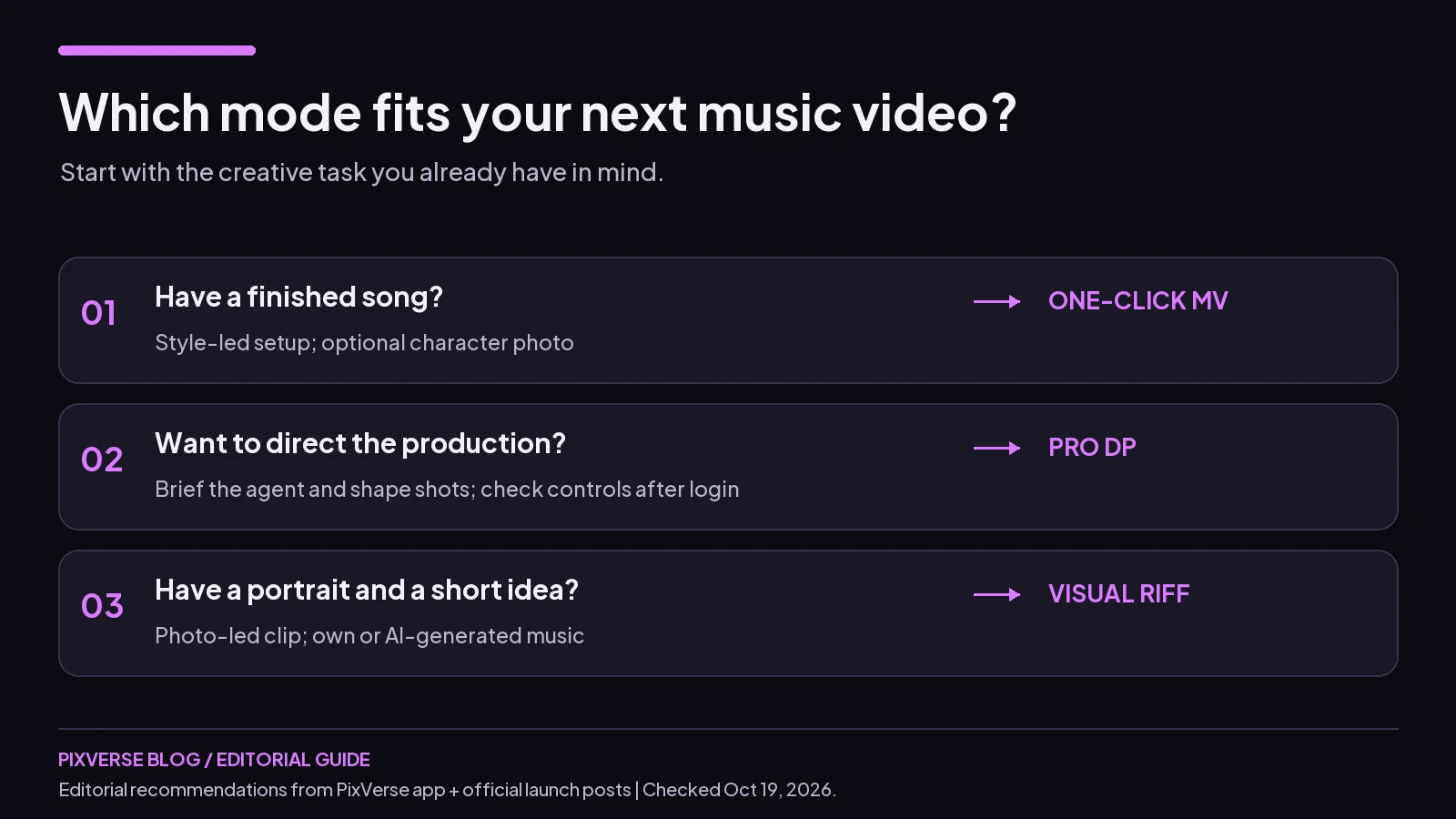 Choose a starting workflow by your creative task; inspect current app settings before committing to an output format.
Tips for Better Music Videos
The PixVerse app’s clear-front-photo guidance and instrumental limitation, checked Oct 19, 2026, are useful preparation checks. Start with clean audio and an unobstructed portrait if you use a character. Listen for abrupt edits or accidental silence before uploading, and make the visual brief match the song’s emotional direction.
Review the result as a viewer: does the opening establish the mood, does the chorus feel coherent, and are visible lyrics readable? For an instrumental, plan visuals that work without singing mouths or lyric subtitles. Change one creative choice at a time when iterating so you can tell which adjustment helped.
FAQ
How long can my song be in PixVerse One-click MV?
One-click MV supports up to six minutes of audio, according to PixVerse’s entertainment page (checked Oct 19, 2026). That is an input limit. Check the current app for output settings before planning a release, and prepare the final version of the track so your first attempt uses the intended arrangement.
Does One-click MV work with instrumental music?
Yes. The PixVerse app says lip sync and subtitles are unavailable for instrumental audio (checked Oct 19, 2026). Use the track to guide a visual concept that does not depend on sung words. For example, prioritize atmosphere or a simple narrative, then review whether the generated visuals suit the music.
What is the difference between Pro DP and One-click MV?
In its Oct 15, 2026 (UTC) announcement, PixVerse says Pro DP centers on briefing an agent and shaping shots. One-click MV’s setup screen, checked Oct 19, 2026, centers on audio, style and character choices. Pick by how much direction you want to provide; confirm Pro DP’s detailed controls after login.
How long are Visual Riff videos?
PixVerse reports an 8–15 second range in its Oct 16, 2026 (UTC) announcement, and the app’s duration control showed the same range on Oct 19, 2026. Plan a short portrait-led moment within that window. A complete song belongs to a different workflow; Visual Riff is useful for a compact teaser concept.
Ready to choose? Open PixVerse and navigate to Music Video, then select the mode that fits your inputs and creative goal.
Related Resources
PixVerse also has the VibeMV mini-app, covered in our June tutorials: