AI Video With Audio: Plan Voice, Music, and Sound
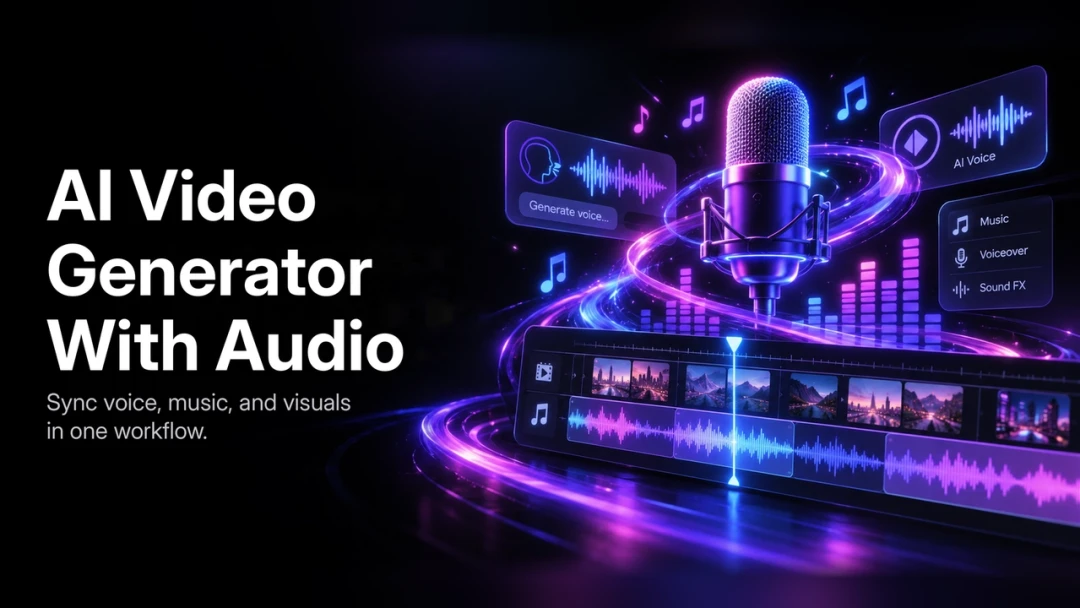
Audio gives a generated scene meaning: a quiet pause, a spoken explanation, or a single physical sound can change how the viewer reads the picture. Plan those choices before generating your PixVerse visuals so you know what the final edit needs to deliver.
The official audio-enabled video guide treats dialogue, voiceover, music, ambience, and lip sync as decisions made at the scene level. This tutorial adds an illustrative sound plan and reusable briefs. The examples are planning templates, not claims about tested generation results.
1. Decide Which Sounds Have a Job
Imagine a 12-second teaser showing a small ceramic lamp on a desk. The message is simply: “Make a little room for a quieter evening.” Plan a short sequence before choosing an audio tool.
| Edit target | Picture | Sound purpose |
|---|---|---|
| 0–4 seconds | A close view of the unlit lamp | Establish a quiet room |
| 4–8 seconds | Warm light appears around the lamp | One gentle cue marks the change |
| 8–12 seconds | A stable hero view with room for copy | Deliver the line clearly, then leave a pause |
Keep the sound plan small. If the voice carries the message, music and effects should support it. If the video will play silently in a feed, make the essential information readable without audio.
2. Choose a Supported Audio Path
Check the selected model and mode in your PixVerse workspace before writing a detailed audio prompt. Some workflows support audio during video generation; others call for separate voice, music, or effects followed by an editing pass. Availability and controls can differ between models and accounts.
You have three practical paths:
- Generate picture and sound together when the chosen workflow supports the required audio.
- Generate visuals first and add sound separately when you need more control over timing, wording, or the mix.
- Use supplied audio when you already have an approved recording or a licensed track.
Do not assume a model can ingest an existing soundtrack, produce exact speech, or perform a separate lip-sync edit because another model offers that capability. Confirm the actual controls and estimated credits before submitting a job.
3. Write Separate Visual and Sound Briefs
A visual brief for the lamp scene could be:
A small ceramic desk lamp on a simple wooden desk at dusk. Preserve the
supplied lamp design. Begin with a close view and make one slow push-in.
The light becomes warm and soft, with a stable background and no cut.
Leave clear space beside the lamp for text added in the edit.
Use this audio brief where supported, or as instructions for separate sound production:
Mood: quiet, welcoming evening.
Voiceover text: "Make a little room for a quieter evening."
Delivery: natural and unhurried; keep every word intelligible.
Ambience: very soft indoor room tone.
Effect: one gentle cue when the lamp illuminates.
Music: restrained, with no competing vocals.
Finish: let the final phrase end, then leave a short quiet hold.
If exact wording is essential, check the rendered line against the script or use a separately approved recording. A prompt is not proof that the speech, cue timing, or pronunciation will be correct.
4. Review Dialogue and Lip Sync When a Face Speaks
The lamp example uses off-camera narration and therefore needs no mouth synchronization. If you replace it with a visible presenter, add a separate review pass.
Begin with a short line and a clearly visible face. Keep the character reference and voice direction stable between related shots. Then review at normal playback speed:
- Listen for missing words, substitutions, and pronunciation errors.
- Watch whether mouth movement follows the start and end of speech.
- Check expressions and head movement through the whole line.
- Listen for music or effects covering important words.
- Compare the voice tone between consecutive shots.
A generated clip can look convincing in a still image while its dialogue fails in motion. If the line is too rushed, shorten it or give the edit more time before requesting another take.
5. Assemble a Clear Mix and Captions
Put the voice on the edit timeline first when it controls pacing. Place the visual cuts around the spoken phrases. Add the main effect at the intended action, then introduce music and ambience only where they improve the scene.
Check the mix on headphones and an ordinary phone speaker. Does the line remain understandable? Does the effect sound connected to the action? Is the background distracting? Avoid choosing a fixed loudness target without checking the delivery platform’s specifications.
Add captions from the approved words and verify their timing. Place them inside the visible composition without covering a face, product, or key action. For localization, allow a new timing pass: translated speech and captions may occupy different amounts of time.
6. Check the Complete Delivery
Before exporting, watch once with sound and once muted. The sound-on pass checks voice, synchronization, continuity, and balance. The silent pass checks whether the central message still reads through the visuals and captions.
Keep the source recording or generated audio, license records where relevant, visual references, and final edit together. Use voices, music, and other assets you have permission to publish. The final review belongs to the creator even when a generation tool supplied the sound.
Open PixVerse to inspect the audio workflows available for your project. Start with one short scene and approve its sound before extending the sequence.