AI Video From a Script: Plan, Generate, and Edit
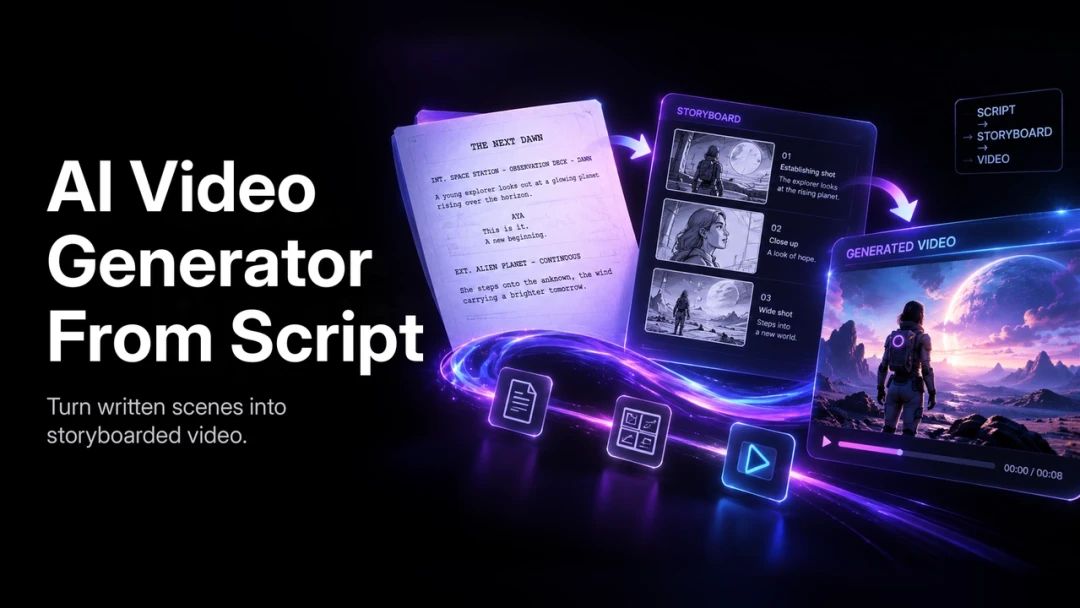
A script tells you what a video needs to communicate. It still needs a shot plan: what appears on screen, which action happens in each clip, and how the pictures fit the spoken words. In PixVerse, start with that plan, generate the individual visuals, and build the finished sequence from approved takes.
The official script-to-video guide recommends breaking scripts into manageable scenes, choosing text or image inputs deliberately, and reviewing continuity across the edit. The worked example below shows how to apply that approach. It is an illustrative production exercise, not a report of a tested output.
1. Lock the Message Before Writing Prompts
For a first exercise, imagine a 15-second social video for a reusable bottle. Use only claims the brand has approved; the example makes no performance or environmental claim.
Working script:
Ready for the next stop? Take your everyday bottle with you. Pick your color and make it yours.
Create a short brief before opening the generator:
| Decision | Example |
|---|---|
| Audience | Commuters preparing for a day out |
| Main subject | One approved bottle design |
| Format | Vertical social video |
| Visual direction | Warm morning light, calm camera movement |
| Required identity | Same bottle color, shape, cap, and proportions |
| Finishing work | Voiceover, exact captions, and end card in an editor |
If the product must be recognizable, prepare a clean reference photo. A text description alone leaves more of its appearance open to interpretation.
2. Convert Each Beat Into One Visual Job
Plan three shots for the edit. These timing targets describe the finished sequence; they do not imply that every model supports the same clip duration.
| Edit target | Visual job | Audio or text |
|---|---|---|
| 0–5 seconds | Establish the bottle on a desk beside a packed bag | “Ready for the next stop?” |
| 5–10 seconds | Show the same bottle in the bag’s side pocket | “Take your everyday bottle with you.” |
| 10–15 seconds | Hold on a clear product view with space for an end card | “Pick your color and make it yours.” |
Choose a supported generation duration in your workspace, then trim approved clips to the timing you need. Leave enough usable footage around each intended cut.
3. Write a Prompt for Each Shot
Use image-to-video when preserving the reference matters. Text-to-video can help explore an environment or visual idea before you commit to a particular asset.
For the opening, adapt this prompt to your approved product image:
Use the supplied bottle image as the product reference. One bottle stands
upright on a tidy wooden desk beside a closed canvas bag. Warm morning
window light. Medium close-up with a slow, gentle push-in. Preserve the
bottle's color, silhouette, cap, and proportions throughout. Keep the
background simple and leave open space above the bottle for a caption.
For the second shot, prepare a matching product-in-bag reference if that composition is essential. Then use:
Animate the supplied product-in-bag image. Keep the same bottle and bag
in their existing positions. The camera makes a subtle lateral move
while soft morning light stays consistent. Preserve product shape and
scale. One continuous shot with no new objects or scene change.
For the closing, a stable frame may be more useful than a complicated reveal:
Use the approved bottle reference. A clean product close-up on a neutral
warm background. Very slow camera movement, with the complete cap and
base visible. Keep the bottle design unchanged and leave clear space
beside it for an end card added during editing.
These are directions, not guarantees. Generate a small first set and inspect the full motion before committing to more variants. Add exact brand text and captions during finishing if generated lettering is unreliable.
4. Review Against the Script
Name files by shot and take, such as opening-take-01. Record the input image, prompt, model, and settings beside the approved version. PixVerse Canvas can help organize the project; use an external edit timeline for any assembly or finishing your chosen workflow does not provide.
Play the draft sequence in order and ask:
- Does each shot support the sentence heard at that moment?
- Does the product remain the same across all three shots?
- Is there enough clear space for the planned caption?
- Does the sequence still make sense with the sound muted?
- Does the closing remain on screen long enough to read?
Fix the smallest failed part. A wrong bottle shape calls for a better reference or another take; a caption that disappears too quickly may only need a longer hold in the edit.
5. Finish Sound, Captions, and Export
Lay the approved voiceover against the selected shots. Adjust cut points to the spoken phrases, add captions, and check the final video at normal speed. For another language, review timing again rather than forcing longer copy into the original duration.
Confirm the destination platform’s current export requirements before delivery. Keep the final master together with its source references and edit project so later changes are manageable.
What This Workflow Does and Does Not Promise
This is a scene-based production method, not a promise that PixVerse will ingest a complete script and return a finished edited film in one request. Model availability, duration, reference controls, audio options, and credit costs vary; check the live controls before generating. A reference improves direction but does not guarantee exact identity across every frame.
Open PixVerse and try one short scene before scaling the plan.