Little Elf Trying to Fly: Turn Your Photo into Video with PixVerse V6
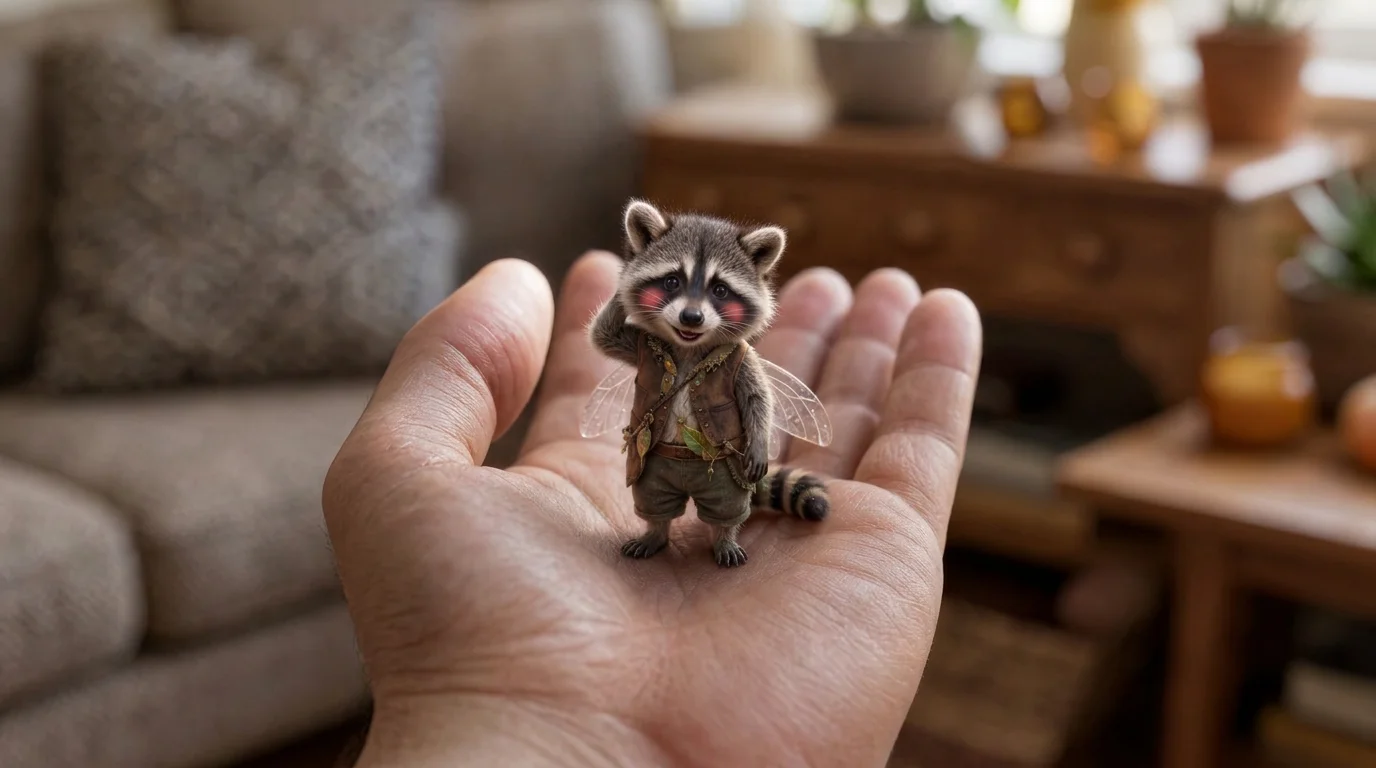
Upload your photo and turn into a cute little elf. That is the official prompt for PixVerse’s newly launched Little Elf Trying to Fly template — a one-photo V6 effect that lets you turn into a cute little elf.
The same one-click flow works with a portrait of you, a friend, or family — upload, generate, and share the 8-second result.
See It In Action
What Is the Little Elf Trying to Fly Template?
Little Elf Trying to Fly is a new PixVerse image-to-video template. You upload one photo; PixVerse V6 generates an 8-second vertical video. You do not write a prompt — the template prompt is locked, so the effect stays consistent.
Template details
| Field | Value |
|---|---|
| Template name | Little Elf Trying to Fly |
| Template ID | 421098025269760 |
| Output | Video |
| Model | PixVerse V6 |
| Input | 1 photo |
| Duration | 8 seconds |
| Quality | 360p, 540p, 720p, 1080p |
| Audio | Yes (built-in track) |
| Custom prompt | Off |
| Launched | Aug 26 2026 |
How it works
- Upload one photo — a clear portrait or full-body shot works best
- Select Little Elf Trying to Fly — search the name in PixVerse templates, or use Template ID
421098025269760 - Generate — PixVerse V6 applies the effect automatically
- Download and share — export the 8-second clip for TikTok, Reels, or Shorts
What’s in the Official Preview
The preview above is the official sample for this template. It shows exactly what the one-click effect produces:
- A one-photo transformation driven by the official prompt: “Upload your photo and turn into a cute little elf.”
- A vertical 8-second clip generated with PixVerse V6
- Built-in background music, ready to share without extra editing
- The same one-click flow works for portraits of you, friends, or family
Use the preview video as your quality reference before generating your own version.
How to Create Your Little Elf Trying to Fly Video
Step 1: Choose a photo
Use a well-lit shot where the subject is clear. Front-facing shots match the official preview style best.
Step 2: Open PixVerse
Visit PixVerse on web or in the app, then open the template library.
Step 3: Find Little Elf Trying to Fly
Search Little Elf Trying to Fly or look under newly launched templates. Confirm Template ID 421098025269760.
Step 4: Generate
Upload the photo and generate. The template does not accept a custom prompt, so you do not need to describe the scene.
Tips
- Use one subject per photo for a cleaner result
- High-resolution images keep facial features sharper
- The output is vertical 360p, 540p, 720p, 1080p, ready for short-form platforms
- Try different photos to get fun variations of the same effect
Frequently Asked Questions (FAQ)
Q: Do I need to write a prompt? A: No. Little Elf Trying to Fly has custom prompts turned off. Upload one photo and generate — no description needed.
Q: How long is the video? A: 8 seconds, generated with PixVerse V6.
Q: What quality is available? A: 360p, 540p, 720p, 1080p.
Q: How many photos do I upload? A: One. This is a single-image template.
Q: What photo works best? A: Use a well-lit photo where the face is clear. Front-facing shots match the official preview style best.
Ready to try Little Elf Trying to Fly? Open PixVerse, search Little Elf Trying to Fly, and generate from one photo.
Related templates: