San Fran Cable Car: Turn Any Photo into a San Fran Cable Car Video
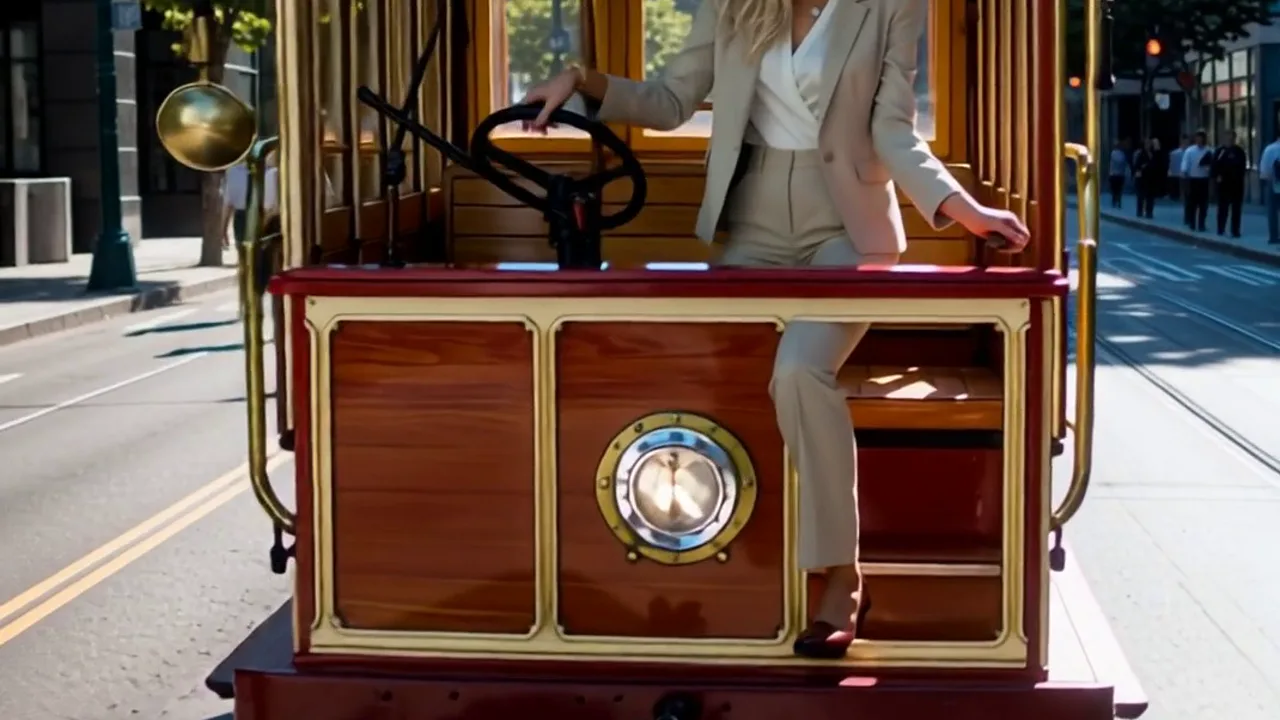
Upload your photo and create a video with San Fran Cable Car. That is the official prompt for PixVerse’s newly launched San Fran Cable Car template — a one-photo PixVerse V5 effect that transforms your subject with “Navigate the iconic San Fran Cable Car.”.
The official preview showcases the creative vision: Navigate the iconic San Fran Cable Car.. The same one-click flow works with your portrait, friend, or pet shot.
See It In Action
What Is the San Fran Cable Car Template?
San Fran Cable Car is an official PixVerse V5 image-to-video template. You upload one photo; PixVerse V5 generates a 8-second video with audio included. You do not need to write a custom prompt — the template prompt is locked to ensure consistent results.
Template details
| Field | Value |
|---|---|
| Template name | San Fran Cable Car |
| Template ID | 400851305376253 |
| Output | Video |
| Model | PixVerse V5 |
| Input | 1 photo |
| Duration | 8 seconds |
| Quality | 360p / 540p / 720p / 1080p |
| Audio | Included |
| Custom prompt | Off |
| Launched | May 08 2026 |
How it works
- Upload one photo — select a clear, well-lit photo of your subject.
- Select San Fran Cable Car — search for the template name in PixVerse or use Template ID
400851305376253. - Generate — PixVerse V5 automatically applies the locked effect.
- Download and share — export your 8-second clip for TikTok, Instagram Reels, or YouTube Shorts.
What’s in the Official Preview
The template preview is designed around the official concept:
- A dedicated visual transformation following “Navigate the iconic San Fran Cable Car.”
- Consistent lighting, motion dynamics, and atmosphere
- Seamless integration of your uploaded subject into the scene
- Synchronized background audio designed for social video formats
The effect is built for effortless social video creation: your uploaded subject remains clear while the template applies its cinematic transformation.
How to Create Your San Fran Cable Car Video
Step 1: Choose a photo
Use a clear, well-lit image where the subject is centered and clearly visible. High-contrast portraits or scenic photos work best depending on the subject.
Step 2: Open PixVerse
Visit PixVerse on web or open the mobile app, then go to the template library.
Step 3: Find San Fran Cable Car
Search for San Fran Cable Car or browse under newly launched templates. Confirm Template ID 400851305376253.
Step 4: Generate and share
Upload your photo and click generate. PixVerse V5 handles the generation automatically without requiring custom prompt adjustments.
Tips
- Use high-resolution images for sharper output quality
- Keep one main subject in the frame for clean visual focus
- Ensure good lighting on the subject’s face or body
- Check the preview before exporting to your favorite social platform
Frequently Asked Questions (FAQ)
Q: Do I need to write a prompt? A: No. San Fran Cable Car has custom prompts turned off. The official prompt “Navigate the iconic San Fran Cable Car.” is applied automatically.
Q: How long is the video? A: 8 seconds, generated with PixVerse V5.
Q: What quality options are available? A: 360p / 540p / 720p / 1080p.
Q: How many photos do I upload? A: 1 photo. This is a single-image template.
Q: Is audio included? A: Yes, the template generates a 8-second video with synchronized background audio.
Ready to create your video? Open PixVerse, search San Fran Cable Car, and generate your clip from one photo.
Related templates: