INNSBRUCK - Alpine: Turn Any Photo into a INNSBRUCK - Alpine Video
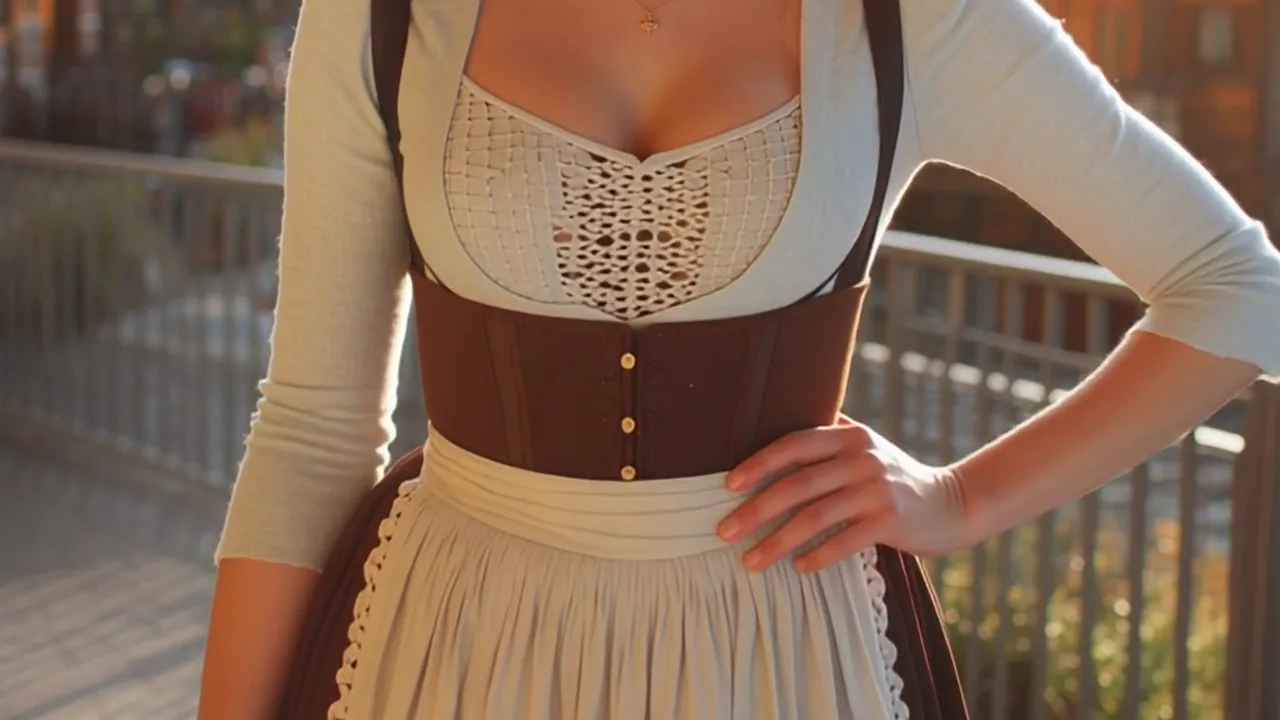
Upload your photo and create a video with INNSBRUCK - Alpine. That is the official prompt for PixVerse’s newly launched INNSBRUCK - Alpine template — a one-photo PixVerse V5.6 effect that transforms your subject with “A scenic alpine transformation.”.
The official preview showcases the creative vision: A scenic alpine transformation.. The same one-click flow works with your portrait, friend, or pet shot.
See It In Action
What Is the INNSBRUCK - Alpine Template?
INNSBRUCK - Alpine is an official PixVerse V5.6 image-to-video template. You upload one photo; PixVerse V5.6 generates a 8-second video with audio included. You do not need to write a custom prompt — the template prompt is locked to ensure consistent results.
Template details
| Field | Value |
|---|---|
| Template name | INNSBRUCK - Alpine |
| Template ID | 400633623712564 |
| Output | Video |
| Model | PixVerse V5.6 |
| Input | 1 photo |
| Duration | 8 seconds |
| Quality | 360p / 540p / 720p / 1080p |
| Audio | Included |
| Custom prompt | Off |
| Launched | May 08 2026 |
How it works
- Upload one photo — select a clear, well-lit photo of your subject.
- Select INNSBRUCK - Alpine — search for the template name in PixVerse or use Template ID
400633623712564. - Generate — PixVerse V5.6 automatically applies the locked effect.
- Download and share — export your 8-second clip for TikTok, Instagram Reels, or YouTube Shorts.
What’s in the Official Preview
The template preview is designed around the official concept:
- A dedicated visual transformation following “A scenic alpine transformation.”
- Consistent lighting, motion dynamics, and atmosphere
- Seamless integration of your uploaded subject into the scene
- Synchronized background audio designed for social video formats
The effect is built for effortless social video creation: your uploaded subject remains clear while the template applies its cinematic transformation.
How to Create Your INNSBRUCK - Alpine Video
Step 1: Choose a photo
Use a clear, well-lit image where the subject is centered and clearly visible. High-contrast portraits or scenic photos work best depending on the subject.
Step 2: Open PixVerse
Visit PixVerse on web or open the mobile app, then go to the template library.
Step 3: Find INNSBRUCK - Alpine
Search for INNSBRUCK - Alpine or browse under newly launched templates. Confirm Template ID 400633623712564.
Step 4: Generate and share
Upload your photo and click generate. PixVerse V5.6 handles the generation automatically without requiring custom prompt adjustments.
Tips
- Use high-resolution images for sharper output quality
- Keep one main subject in the frame for clean visual focus
- Ensure good lighting on the subject’s face or body
- Check the preview before exporting to your favorite social platform
Frequently Asked Questions (FAQ)
Q: Do I need to write a prompt? A: No. INNSBRUCK - Alpine has custom prompts turned off. The official prompt “A scenic alpine transformation.” is applied automatically.
Q: How long is the video? A: 8 seconds, generated with PixVerse V5.6.
Q: What quality options are available? A: 360p / 540p / 720p / 1080p.
Q: How many photos do I upload? A: 1 photo. This is a single-image template.
Q: Is audio included? A: Yes, the template generates a 8-second video with synchronized background audio.
Ready to create your video? Open PixVerse, search INNSBRUCK - Alpine, and generate your clip from one photo.
Related templates: