Gravity Left the Chat: PixVerse Zero-Gravity Photo Effect
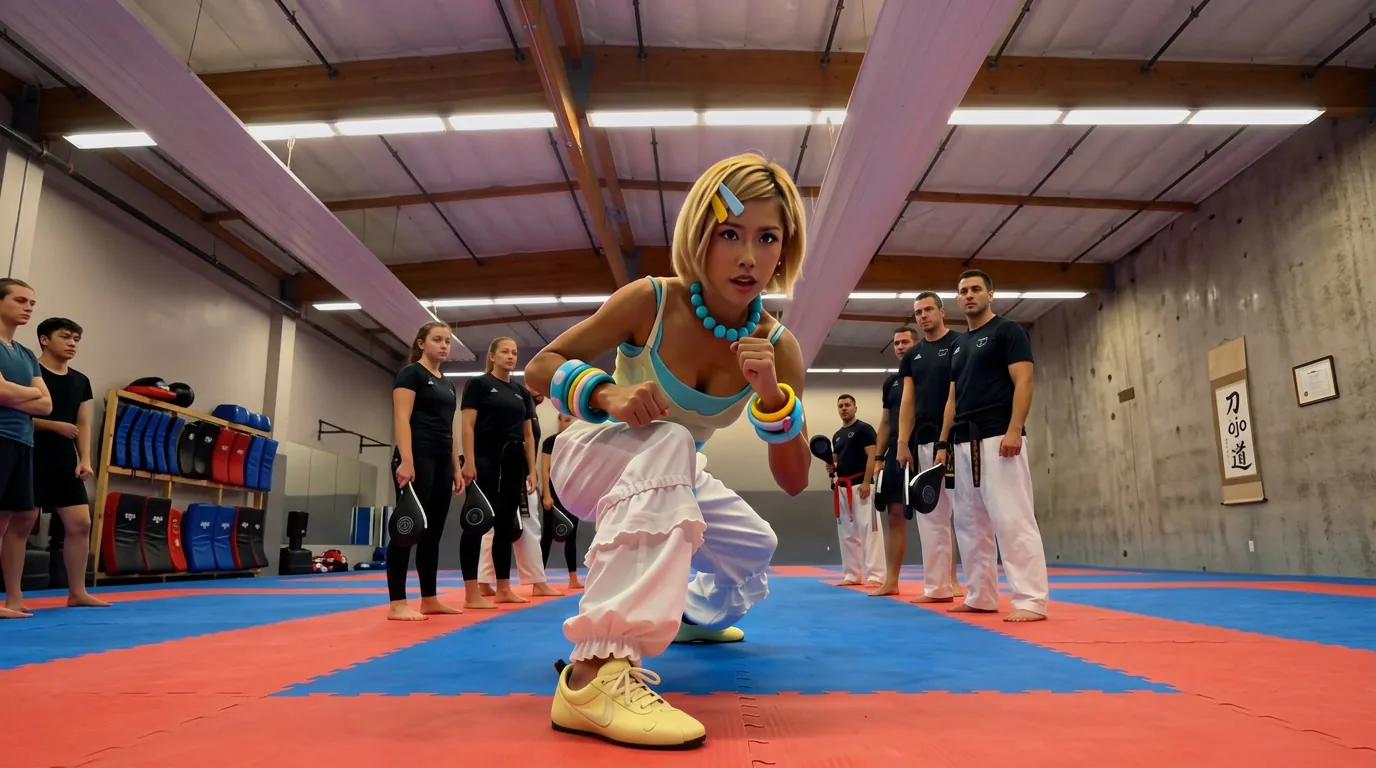
Upload one photo and watch it go full zero-gravity mode. That is the official prompt for PixVerse’s newly launched Gravity Left the Chat template — a one-photo V6 effect that floats your subject off the ground.
The official preview lifts the uploaded subject into a weightless drift, hair and clothes floating, as the scene shifts into full zero-gravity style. The same one-click flow works with a portrait of you, a friend, or a pet.
See It In Action
What Is the Gravity Left the Chat Template?
Gravity Left the Chat is a new PixVerse image-to-video template. You upload one photo; PixVerse V6 generates a 7-second vertical video with a soundtrack. You do not write a prompt — the template prompt is locked, so the effect stays consistent.
Template details
| Field | Value |
|---|---|
| Template name | Gravity Left the Chat |
| Template ID | 422165391804160 |
| Output | Video |
| Model | PixVerse V6 |
| Input | 1 photo |
| Duration | 7 seconds |
| Quality | 360p / 540p / 720p / 1080p |
| Audio | Included |
| Custom prompt | Off |
| Launched | Sep 01 2026 |
How it works
- Upload one photo — a clear portrait works best
- Select Gravity Left the Chat — search the name in PixVerse templates, or use Template ID
422165391804160 - Generate — PixVerse V6 applies the effect automatically
- Download and share — export the 7-second clip, up to 1080p, for TikTok, Reels, or Shorts
What’s in the Official Preview
The template preview is a weightless float sequence, not a simple background swap:
- The uploaded subject lifting off the ground
- Hair and clothing drifting in zero gravity
- A playful meme-ready moment built for the caption
- A punchy 7-second cut that loops well on short-form feeds
The joke lands in the title: gravity leaves the chat, and your photo floats.
How to Create Your Gravity Left the Chat Video
Step 1: Choose a photo
Use a well-lit shot where the face is clear. Full-body shots show off the floating effect best.
Step 2: Open PixVerse
Visit PixVerse on web or in the app, then open the template library.
Step 3: Find Gravity Left the Chat
Search Gravity Left the Chat or look under newly launched templates. Confirm Template ID 422165391804160.
Step 4: Generate
Upload the photo and generate. The template does not accept a custom prompt, so you do not need to describe the scene.
Tips
- Use one subject per photo for a cleaner float
- Jump poses and mid-action shots sell the weightlessness
- Export 1080p to keep hair and fabric detail crisp
- The output ships with a soundtrack and loops cleanly
Frequently Asked Questions (FAQ)
Q: Do I need to write a prompt? A: No. This template has custom prompts turned off. Upload one photo and generate.
Q: How long is the video? A: 7 seconds, generated with PixVerse V6.
Q: What quality is available? A: 360p, 540p, 720p, and 1080p.
Q: Is there audio? A: Yes. This template includes a soundtrack.
Q: How many photos do I upload? A: One. This is a single-image template.
Ready to float? Open PixVerse, search Gravity Left the Chat, and generate from one photo.
Related templates:
- Have a Free Rock Climbing Experience — summit at sunset
- Static Rock Climbing Pose — frozen mid-move on the wall
- Transform Into a Puppet with Strings — theatrical stage counterpart
- Little Gymnast