Graduation, Enlarged: Create with PixVerse AI
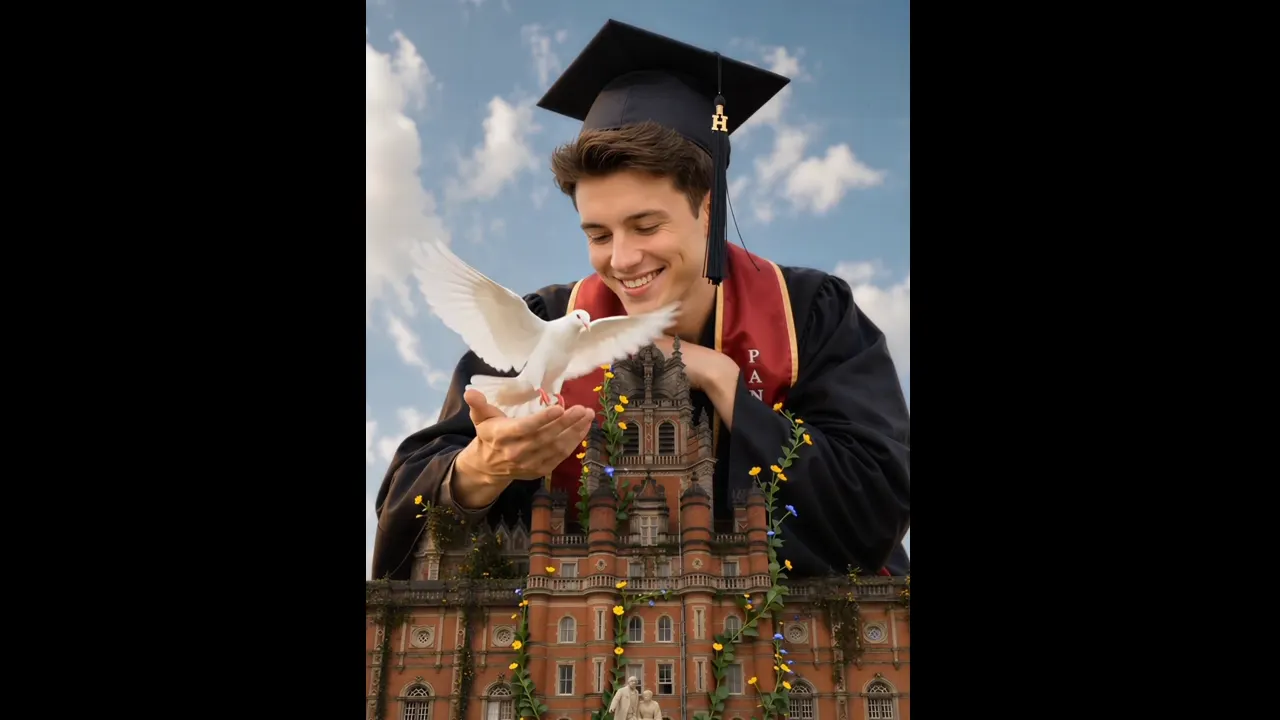
Use the official PixVerse prompt with your own source image and let the template do the styling. The published concept is kept intentionally clear so you can see what the effect is designed to create.
Graduation, Enlarged — Graduation, Enlarged
See It In Action
What Is the Graduation, Enlarged Template?
Upload the required source image or images, open PixVerse, choose the template, and generate. Custom prompts are off, so the official prompt controls the result.
Field Value
| Field | Value |
|---|---|
| Template name | Graduation, Enlarged |
| Template ID | 407475714204416 |
| Output | Video |
| Model | PixVerse V6 |
| Input | 3 photos |
| Duration | 8 seconds |
| Quality | 360p / 540p / 720p / 1080p |
| Audio | Included |
| Custom prompt | Off |
| Launched | Jun 10 2026 |
How the official prompt works
Graduation, Enlarged
What’s in the Official Preview
The preview presents the official enlarged graduation moment concept.
How to Create
- Upload the source image or images described in the table.
- Open PixVerse and find Graduation, Enlarged.
- Confirm Template ID
407475714204416, then generate. - Download and share your video.
Tips
- Use a clear, well-lit source and keep the important subject visible. Download the highest available quality when you plan to share the result. - Keep the subject or product clearly visible in every source image. - The official prompt is fixed, so choose your source images carefully.
Frequently Asked Questions (FAQ)
Do I need a custom prompt? No. The template uses its official prompt.
What do I upload? Use the number and type of source images listed above.
Where can I use it? Open PixVerse to generate, download, and share the result.
Open PixVerse to try Graduation, Enlarged.
Related templates: