Extreme Rock Climbing: Turn Your Photo into a Climbing Master Video
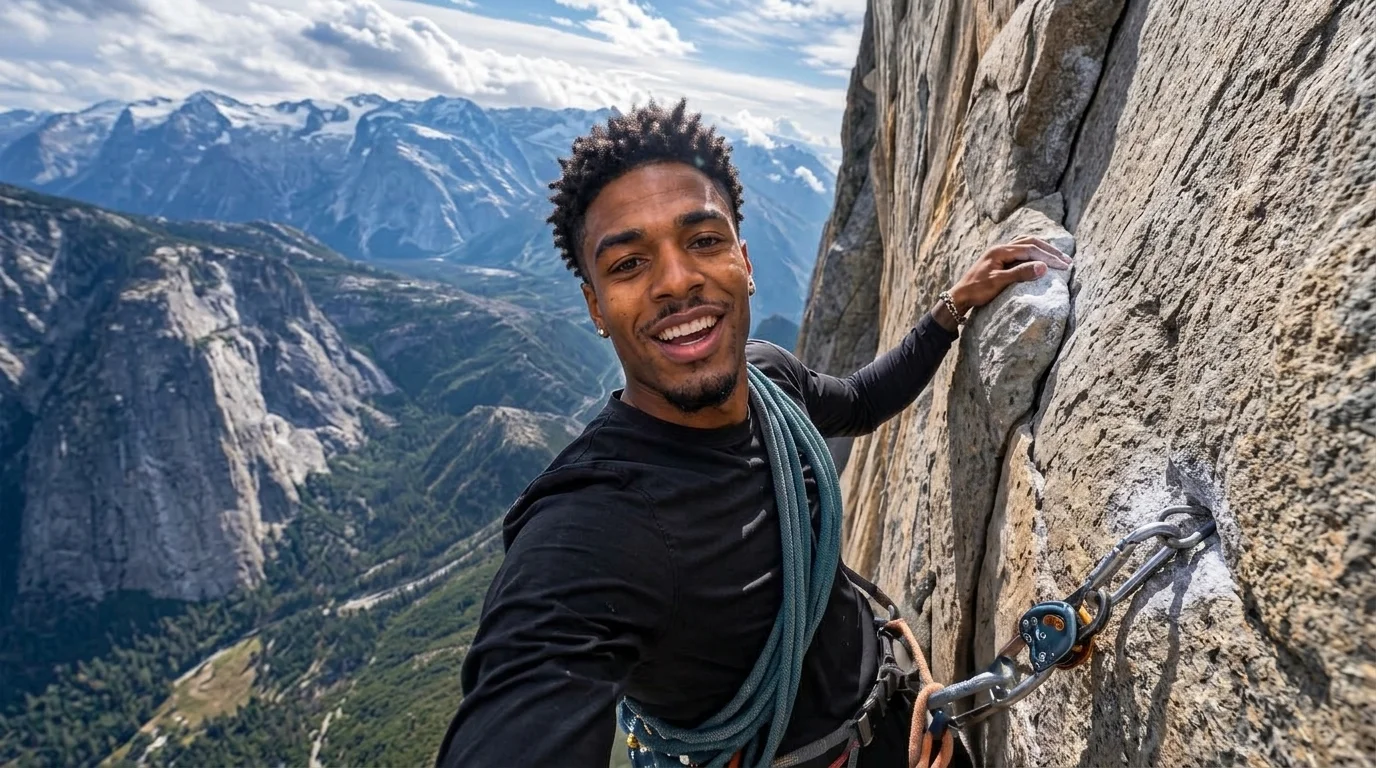
“Upload a photo, and you can also become a rock climbing master.” That is the official prompt for PixVerse’s Extreme Rock Climbing template — a single-photo V6 climbing effect.
The official preview is a vertical short-form clip generated from a single uploaded photo: The effect keeps the subject recognizable while placing them onto a dramatic high-altitude climbing wall.. The same one-click flow works with portraits, selfies, and everyday photos alike.
See It In Action
What Is the Extreme Rock Climbing Template?
Extreme Rock Climbing is a new PixVerse image-to-video template. You upload one photo; PixVerse V6 generates a 10-second vertical video. You do not write a prompt — the template prompt is locked, so the effect stays consistent.
Template details
| Field | Value |
|---|---|
| Template name | Extreme Rock Climbing |
| Template ID | 420548340614592 |
| Output | Video |
| Model | PixVerse V6 |
| Input | 1 photo |
| Duration | 10 seconds |
| Quality | 720p |
| Custom prompt | Off |
| Launched | Aug 23 2026 |
How it works
- Upload one photo — a clear, well-lit shot works best
- Select Extreme Rock Climbing — search the name in PixVerse templates, or use Template ID
420548340614592 - Generate — PixVerse V6 applies the effect automatically
- Download and share — export the 10-second clip for TikTok, Reels, or Shorts
What’s in the Official Preview
The template preview is generated from a single uploaded photo:
- A rugged vertical cliff face set against an expansive mountain horizon
- The uploaded subject scaling the rock with chalked hands and climbing focus
- Realistic texture on natural stone and dynamic camera angles tracking the ascent
- High-fidelity likeness preservation throughout the 10-second climb
The effect keeps the subject recognizable while placing them onto a dramatic high-altitude climbing wall.
How to Create Your Extreme Rock Climbing Video
Step 1: Choose a photo
Use a well-lit shot where the subject is clear. Front-facing portraits and selfies match the official preview style best.
Step 2: Open PixVerse
Visit PixVerse on web or in the app, then open the template library.
Step 3: Find Extreme Rock Climbing
Search Extreme Rock Climbing or look under newly launched templates. Confirm Template ID 420548340614592.
Step 4: Generate
Upload the photo and generate. The template does not accept a custom prompt, so you do not need to describe the scene.
Tips
- Use clear, well-lit portraits or athletic poses for natural climbing posture
- High-contrast images maintain sharper facial details against the rock background
- Sportswear or outdoor clothing blends seamlessly into the mountain environment
- The output is vertical 720p, optimized for TikTok, Reels, and Shorts
Frequently Asked Questions (FAQ)
Q: Do I need to write a prompt? A: No. Extreme Rock Climbing has custom prompts turned off. Upload one photo and generate.
Q: How long is the video? A: 10 seconds, generated with PixVerse V6.
Q: What quality is available? A: 720p.
Q: How many photos do I upload? A: One. This is a single-image template.
Q: Where do I find this template?
A: Open PixVerse, search Extreme Rock Climbing, or look it up by Template ID 420548340614592.
Ready to try Extreme Rock Climbing? Open PixVerse, search Extreme Rock Climbing, and generate from one photo.
Related templates:
- Mountain Bike — Ride Any Photo Down the Trail in 15 Seconds
- Cute Slot Machine — Win the Jackpot with Your Photo on PixVerse AI
- Cow Cow Love — Turn a Selfie into a Sweet Moment with Cows
- Little Gymnast — tiny gymnast counterpart