Underwater Swimming Transformation: Photo to Video Guide
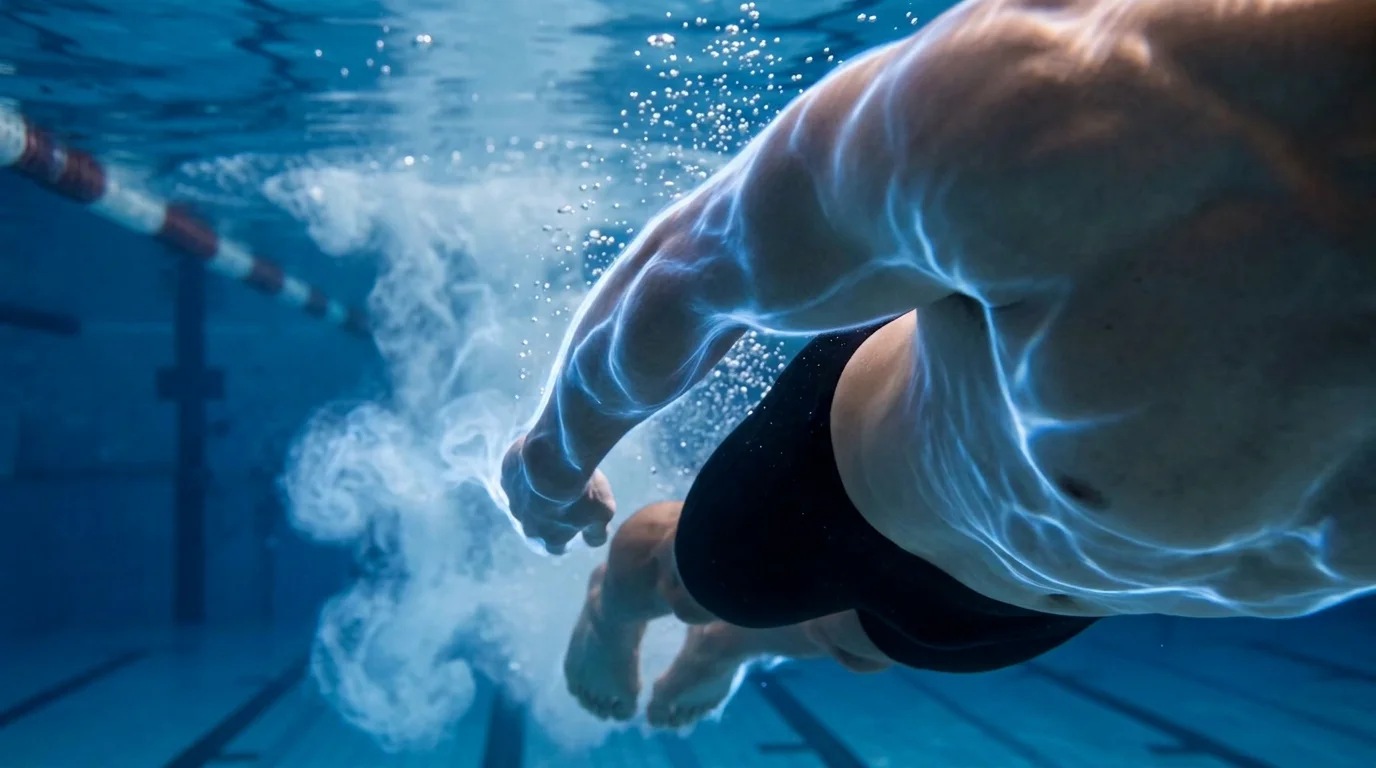
Upload your photo and transform underwater while swimming. That is the official prompt for PixVerse’s newly launched Underwater Transformation While Swimming template — a one-photo V6 effect that transforms your subject underwater in the middle of a swim.
The same one-click flow works with a portrait of you, a friend, or a pet: upload one photo, generate, and share.
See It In Action
What Is the Underwater Transformation While Swimming Template?
Underwater Transformation While Swimming is a new PixVerse image-to-video template. You upload one photo; PixVerse V6 generates a 11-second vertical video. You do not write a prompt — the template prompt is locked, so the effect stays consistent.
Template details
| Field | Value |
|---|---|
| Template name | Underwater Transformation While Swimming |
| Template ID | 422325514820864 |
| Output | Video |
| Model | PixVerse V6 |
| Input | 1 photo |
| Duration | 11 seconds |
| Quality | 720p |
| Audio | No |
| Custom prompt | Off |
| Launched | Sep 02 2026 |
How it works
- Upload one photo — a clear portrait or full-body shot works best
- Select Underwater Transformation While Swimming — search the name in PixVerse templates, or use Template ID
422325514820864 - Generate — PixVerse V6 applies the effect automatically
- Download and share — export the 11-second clip for TikTok, Reels, or Shorts
What is in the Official Preview
The template preview is staged around the official effect, not a simple overlay:
- Your uploaded face transforming beneath the surface
- A graceful underwater swimming moment
- A blue underwater scene staged around the transformation
- A vertical clip ready for short-form platforms
The effect is built for one-click sharing: your uploaded face stays recognizable while the template stages the scene around it.
How to Create Your Underwater Transformation While Swimming Video
Step 1: Choose a photo
Use a well-lit shot where the face is clear. Front-facing portraits and pet photos both work well.
Step 2: Open PixVerse
Visit PixVerse on web or in the app, then open the template library.
Step 3: Find Underwater Transformation While Swimming
Search Underwater Transformation While Swimming or look under newly launched templates. Confirm Template ID 422325514820864.
Step 4: Generate
Upload the photo and generate. The template does not accept a custom prompt, so you do not need to describe the scene.
Tips
- Use one subject per photo for a cleaner result
- High-resolution images keep facial features sharper
- Front-facing, well-lit photos match the preview best
- The output is vertical, ready for short-form platforms
Frequently Asked Questions (FAQ)
Q: Do I need to write a prompt? A: No. Underwater Transformation While Swimming has custom prompts turned off. Upload one photo and generate.
Q: How long is the video? A: 11 seconds, generated with PixVerse V6.
Q: What quality is available? A: 720p.
Q: How many photos do I upload? A: One. This is a single-image template.
Q: Does it include audio? A: No, the output has no audio track.
Ready to try Underwater Transformation While Swimming? Open PixVerse, search Underwater Transformation While Swimming, and generate from one photo.
Related templates: